Move around the map and use its buttons
Move and zoom the map, find your location, read the zoom level, show or hide the map and the panel, and use the right-click menu.
Drag the map to move it, scroll or pinch to zoom, and use the location button to see where you are. It works on a computer and on a phone; the differences are noted below.
Move and zoom
- Drag the map to move it.
- Scroll, or pinch, to zoom in and out. Double-click to zoom in.
Find your location
- Click the location button (a circle with a crosshair) at the bottom of the map. On a phone it can sit right above the panel.
- If your browser or phone asks, allow location access.
While it finds you, the button spins. Once it turns blue, the map follows you as you move. Move the map yourself and it stops following; click the button again to go back to where you are, or click it while the map follows you to turn it off. Red means the app couldn't get your location: check that location is on and allowed, then click again.
Not every app has the location button, place search, the zoom level or the sun calculator: if you don't see one of them, ask us.
Open a record from the map
Click (or tap) a shape or point to open its record: see Open a record and find your way around its page.
On a computer, in apps set up for it, pointing at a shape or point shows a short card about it without opening it. Phones don't show these cards.
Find a place
The place search button at the top right of the map (a magnifier in a frame), or the / key, moves the map to a town, an address or a coordinate. See Find a record, a row or a place.
Zoom level
On a computer, the number at the top right of the map is the zoom level (Zoom level). Click it to see the map's current bounds.
In the Layers panel, a badge such as 12+ next to a layer means it shows only from that zoom level in.
Show or hide the map and the panel
On a computer:
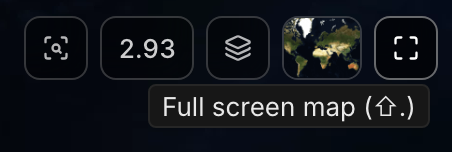
- Full screen map (⇧.), the arrows at the top right of the map (or Shift+.), hides the panel. Click Exit full screen map (⇧.) to bring it back.
- Hide Map, the button at the right end of the panel's top bar, gives the panel the whole screen. Show Map brings the map back.
- Where the panel floats over the map, the panel icon at its edge folds it away and brings it back.
On a phone, depending on the page, you drag the panel up or down over the map, or switch with Show Map and Hide Map at the bottom of the screen.
The right-click menu
On a computer, right-click a shape or point to open its menu. Depending on your role and the record, it has Edit (opens the record's form), Download (see Download polygons from the map) and Delete (after you confirm).
In some apps, while a list is open, editors and admins can right-click the map to see an item such as Create Tree here, named after the list's record type, with the spot's coordinates under it. It opens the form for a new record at that spot.
Other buttons on the map
- Layers turns layers on and off: see Turn map layers on and add sources.
- The map thumbnail next to it changes the imagery: see Change the basemap.
- The legend at the top left (on a phone, at the top of Layers) lists your record layers: see Read the map legend.
- For editors and admins, ⊕ can offer drawing options when the app supports them: see Draw a boundary, line or point on the map.
- Sun Calculator (a sun), in some apps, shows where the sun is over the map for a date and time you pick.
While you draw a shape, the buttons along the top and the legend hide until you finish.