How Restoration Scope works
The parts every Restoration Scope app shares, and the guide for each job: records, linked records, the map, phones, roles, and what changes between apps.
Restoration Scope keeps a project's records and its map in one place. This page explains the parts every app shares, so the other guides make sense, and points you to the guide for each job.
Find the guide for your job
- Sign in
- Find a record
- Add or change a record
- Fill in a form
- Filter a list and save it as a view
- Draw a boundary
- Work without signal
- Make sure your changes synced
- Download your data
- Share with a funder
- Give someone access
- Fix something that isn't working
Your app
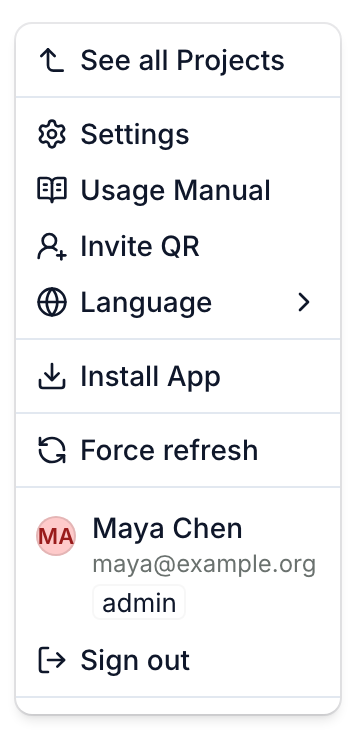
Each organization gets its own app, at its own address. If your account can open more than one, click your app's logo, then See all Projects to switch.
Record types and records
An app keeps its information in lists, one for each record type, for example Trees and Sites. Each item in a list is a record: one tree, one site.
A list can show as a table or in other layouts, such as cards. You can search, filter and sort it, and save the result as a view. See List layouts.
Record pages
Click a record to open its page. It shows the record's fields, for example its Status, and its place on the map when it has one. Many record pages split their content into tabs, for example an overview and the records that belong to it. See Open a record.
Linked records
Records can be linked to each other. Some live inside another record: for example, each tree belongs to one site, and the site's page lists its trees. A record lives inside at most one other record. Other links connect two records without one holding the other.
The map and the data panel
Most pages show the map next to a data panel. The panel holds the list or the record you opened. The map shows records that have a place, such as a point or a boundary, in layers you can turn on and off.
- On a computer, the panel usually sits beside the map.
- On a phone, the panel usually slides up over the map.
- Some pages show only the map, or only the panel.
When a table and its connected record layer are on the same page, they share the table's filter.
On a computer, apps with comments enabled let you leave comments on the map.
See Use the map, Map layers and Map legend.
Computer and phone
Your account and your app are the same on a computer and on a phone. On a phone you can use the browser or the RS Field app: see Install the app on your phone.
Some work is easier or only possible on a computer, for example adding sources to the map's layers. Working with no connection is the other way round: it works only on a phone, in apps where it's turned on.
Roles
Each person has a role in each app. To see yours, click your app's logo: your role shows under your email.
- Viewer: sees the app's information and can comment.
- Editor: also adds, edits and deletes records.
- Admin: also adds people, sets their roles and manages the app's settings.
An app can narrow this for some pages or record types. Admins give people their role: see Add users and set their roles.
What changes from app to app
Each app is set up for its organization. What you see depends on:
- its record types and their fields;
- its pages, and what each page shows;
- its map layers and basemaps;
- which features are on, for example working offline, installing on the home screen, importing, comments, and the languages you can choose.
Not every app has everything in these guides: if you don't see something a guide describes, ask us.
To change the app's language or sign out, see Change the language, sign out or delete your account.