Open a record and find your way around its page
Open a record from a list or the map, read its page (fields, tabs and linked records), go back to the list, and open or share it in a new tab.
Click a record in a list or on the map to open its page: its fields, the records linked to it and, when it has a place, its spot on the map. Depending on your app, the record opens beside the map, in a panel over it, or on a page without a visible map.
Open a record from a list
- Open a list, for example Trees.
- In a table, click the record's name. In a list, cards or a board, click anywhere on the record.
To find a record by name, search the list first: see Filter, sort and save views of a list or Search.
Open a record from the map
Click the record's point or shape on the map. Its page opens and the map moves to show it.
Some record types open a small box on the map instead of a page. It shows the record's name and main fields; on a phone it opens as Quick view. If you have permission to edit this record, you can edit it from the quick view.
What the page shows
From top to bottom:
- The way back: above the title, a link to the record this one lives inside, for example a tree's site. A record that doesn't live inside another links back to its list instead, for example All Trees.
- The title and its buttons: Edit appears when you have permission to edit this record. ⋯ holds more actions, such as downloading the record's shape or deleting it. What you see there depends on your role and your app.
- Linked: other records this one points to without living inside them. Click one to open it.
- The fields, for example Status. Many apps split the page into tabs, for example an overview and the records that belong to this one: a site's page can list its trees. Click a record in that list to open it.

Each app sets up its own record pages, so yours may show different sections and tabs.
Go back
- Click the link above the title to go up to the record this one lives inside, or back to the list.
- Your browser's back button also works: it takes you to the page you were on before.
Open a record in a new tab
On a computer:
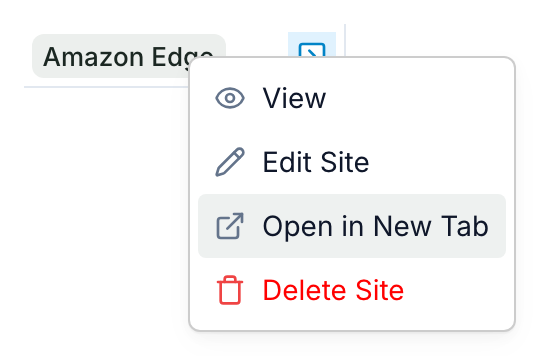
- Right-click the record in a list and choose Open in New Tab. The same menu has View, which opens the record here. If you have permission to edit this record, the menu also includes Edit followed by the record type, for example Edit Tree.
- Or hold Ctrl (Cmd on a Mac) and click the record's name.
Share a link to a record
Each record's page has its own address. Copy it from your browser's address bar and send it to a teammate: the link opens the same record.
When a record isn't there
If someone deleted the record, or the link points to a record that no longer exists, the page's title names the record type and says it wasn't found, for example Tree not found. Click All Trees above it to go back to the list.
To change a record, see Add, edit and delete records. To discuss it with your team, see Comments.