Take photos and GPS points in the field
Capture a record's GPS point with your phone, wait for good accuracy, and take photos that keep where they were taken.
On your phone, a record's location field uses your phone's GPS: tap Capture GPS Point, wait until the accuracy is good, then tap Capture Best Point. Photo fields open your camera with Take Photo, and each photo saves a location. Both work offline if your app has it.
Capture a GPS point
- Open the record's form and find its location field.
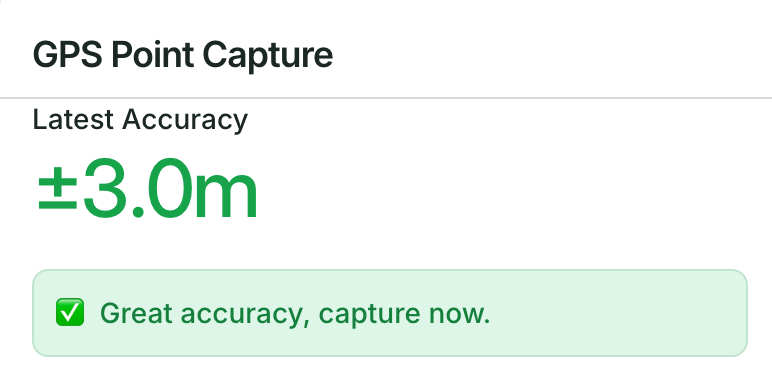
- Tap Capture GPS Point. A panel opens with the Latest Accuracy, in metres.
- Stay still and wait for the number to drop. The panel tells you when to capture:
- "Waiting for GPS system to warm up...": the first minute after the GPS starts, unless the accuracy gets better than 5 m sooner.
- "Try to avoid covered areas and stay still for a few seconds": 5 m or more.
- "Capture now, or wait still a few more seconds for better accuracy": between 3 and 5 m.
- "Great accuracy, capture now.": 3 m or less.
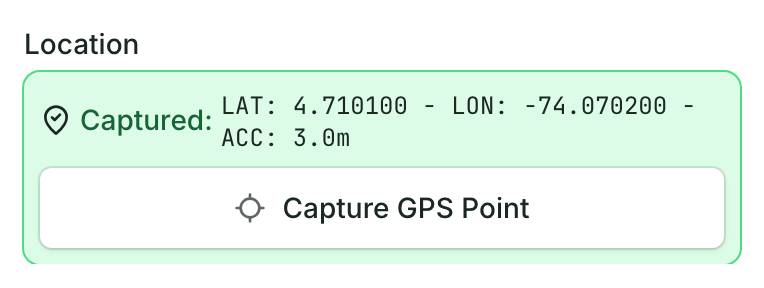
- Tap Capture Best Point.
The form shows Captured: with the latitude, longitude and accuracy (ACC). Save the form.
If the app can't use your location, the button reads Check GPS permissions: tap it and follow the steps to allow location. The app needs precise location to capture a point.
On a computer, there's no GPS: click Select GPS point on map (or Change location) and click the spot on the map.
Walk a line or a boundary
On a phone, a shape field also offers Walk Perimeter (or Walk Line): you walk the edge while the phone records your path. The steps are in Draw a boundary, line or point on the map.
Take photos
In a record's form:
- On a phone, a field for one photo has Take Photo to open the camera. Depending on how the field is set up, it may also have Upload Photo to choose one from your phone, or only let you choose a file.
- A field for several photos has Take photo and Upload on a phone.
If your app has field photos, editors can also open a record on the map and tap Take Photo in its actions: the photo is saved with that record.
Each photo saves a location: the one stored in the photo itself or, when it has none, a stand-in: where your phone is when you add it, the record's location, or another photo's. So a saved location isn't always where the photo was taken: check it, above all for an old photo. A photo with no location can show No GPS when you open it.
With no connection, photos wait on your phone and upload when you're back online. See Check that your changes synced.
Get better accuracy
- Give the phone a minute or two with a view of the sky before you capture. The first readings are the worst.
- Stay away from tree cover, buildings and steep slopes when you can, and stand still.
- Keep location set to precise or high accuracy in the phone's settings.
How far to trust a phone's GPS for plots, boundaries and single trees: read How accurate is phone GPS for field data?