Change the basemap
Switch the imagery under your map, such as satellite or a light map, and turn on 3D terrain or black and white.
The basemap is the imagery under your data. You can switch it on most pages; where a page sets it, the picker shows "This view sets the basemap." and the choices are greyed out. A public app shows the picker only if we turned it on for you.
Switch the basemap
- On the map, click the small map thumbnail at the top right, next to Layers.
- In Basemaps, click the one you want.
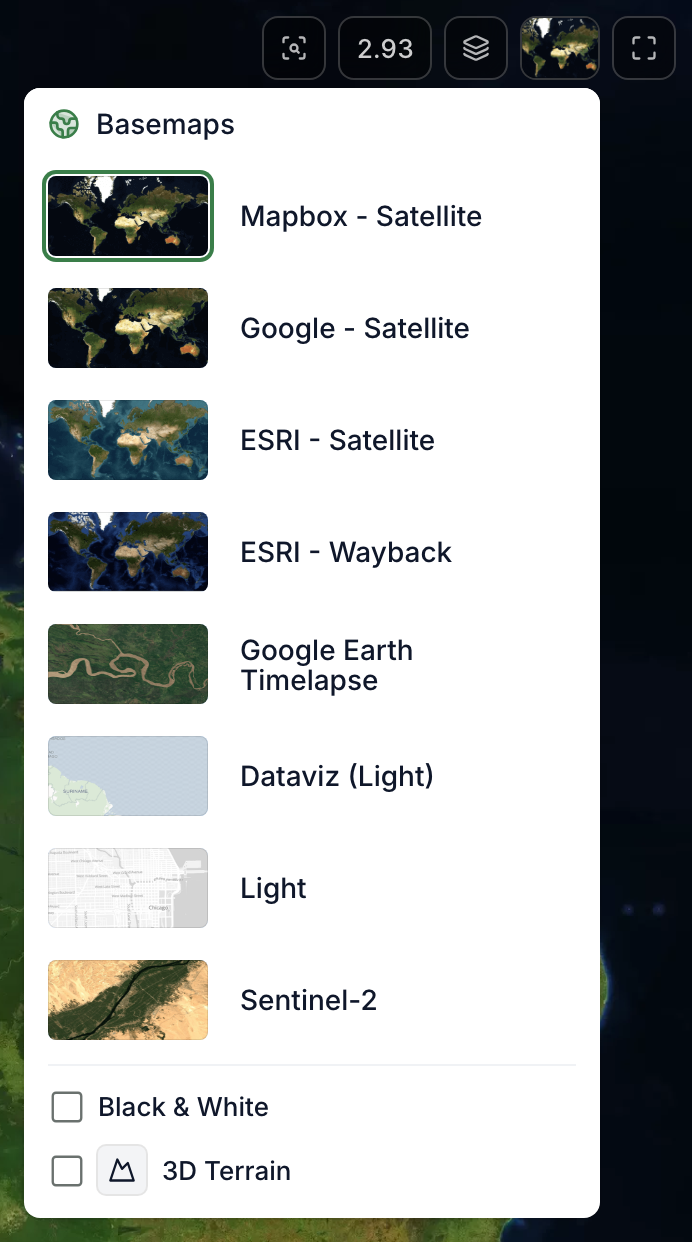
The options depend on your app. Most apps have several satellite basemaps (Mapbox, Google, ESRI), a Light map that makes your data stand out, and Sentinel-2.
Hover over a basemap and click ⓘ to read where its imagery comes from and how recent it is.
See how a place changed
ESRI - Wayback, Google Earth Timelapse and Sentinel-2 show imagery from other dates. When you choose one, a timeline appears at the bottom of the map to move through the dates.
Black and white, and 3D
At the bottom of Basemaps:
- Black & White greys out the imagery so your data stands out.
- 3D Terrain shows hills and valleys. With it on, Orbit camera lets you turn around the map.