Add users and set their roles
Give people access to your app by email address or email domain, and choose what each person can do.
Admins choose who can open your app. You add people by email address, or let a whole email domain in at once.
Open the permissions page
- Click your app's logo in the top-left corner.
- Click Settings.
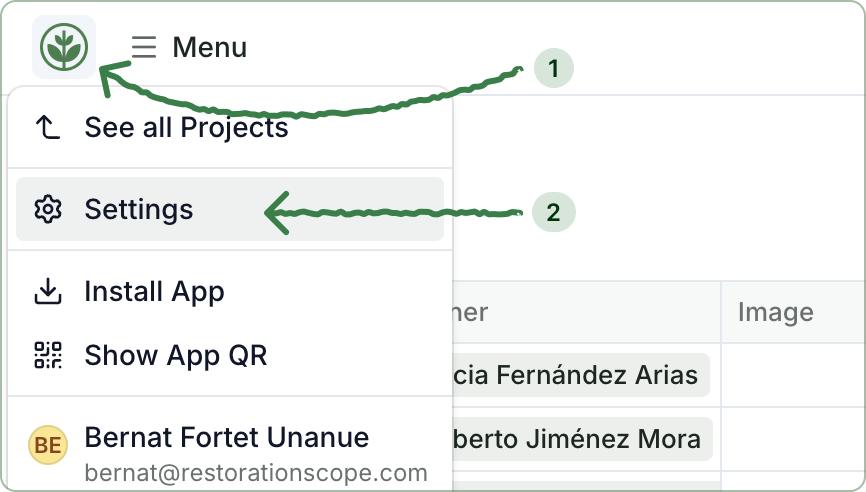
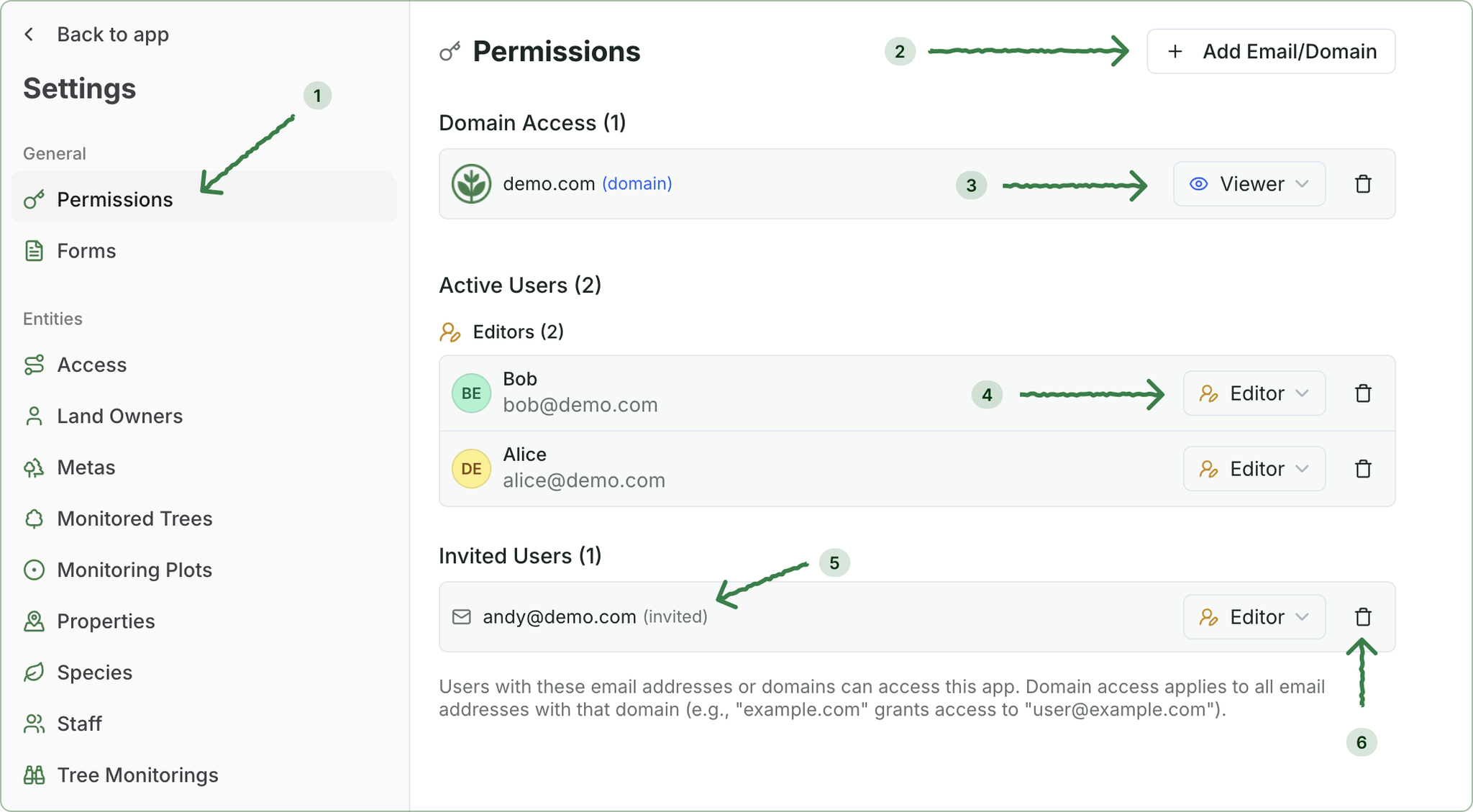
- Settings opens on Permissions. If it doesn't, click Members & Permissions in the sidebar.
Add people
- Click + Add Email/Domain.
- Type one or more email addresses or domains, separated by commas:
- An email address, such as
andy@demo.com, lets that one person in. - A domain, such as
demo.com, lets in anyone who signs in with an email address at that domain.
- An email address, such as
- Choose a Role and click Add. Every entry you typed gets the same role.
People don't get an email when you add them. Send them your app's link and ask them to sign in with the address you added.
Roles
- 👁️ Viewer: sees information.
- ✏️ Editor: sees information, and creates, edits and deletes it.
- ⚙️ Admin: everything an editor can do, plus the Settings menu and adding other people.
A domain has a role too. Someone who joins through a domain gets the domain's role: if you added demo.com as Viewer, mary@demo.com joins as a viewer.
See and change who has access
- Users via Domain Access lists who joined through a domain. Change their role there to give one of them more or less access.
- Invited Users lists people you added who haven't signed in yet.
- To remove a person or a domain, click the trash icon on its row.