Sign in to your app and sign out
Sign in with your Google or Microsoft account, open the right app when you have more than one, and sign out without losing changes.
You sign in with a Google or Microsoft account, on a computer or a phone. Use the account whose email address your admin gave access to. The same account opens your app in the browser and in the RS Field app.
Sign in
- Open the link to your app, or open RS Field on your phone. If you're not signed in, the sign-in page opens.
- Click Continue with Google or Continue with Microsoft. In RS Field on an iPhone, you can also tap Continue with Apple.
- Choose your account on the Google, Microsoft or Apple page that opens.
Your app opens. If you opened a link to a page of your app, you land on that page.
A link always opens its page, even if your account can open more than one app. Without a link, such an account sees Projects instead: click the app you want.
Your first sign-in
You need access before you can open an app:
- If an admin added your email address, or your whole email domain, sign in with that address. See Add users and set their roles.
- If you got an invite link or QR code, open it, then sign in. You join the app with the link's role, and it opens. See Invite people with a link or QR code.
If you sign in and see Get started with Part of an existing project?, your account can't open any app yet. The card shows the email address that needs access: send it to your admin, or sign out and sign in with the account they added.
If you open a link to an app your account can't open, you land on Projects instead.
Switch between apps
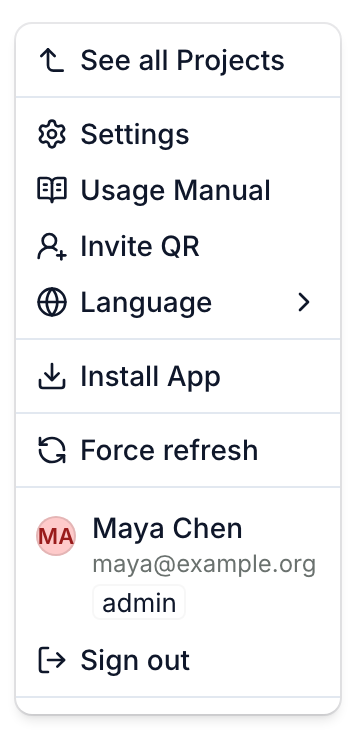
- Click your app's logo in the top-left corner. On a phone, tap it.
- Click See all Projects.
- Click the app you want.
If sign-in fails
An error page says what went wrong. Click Try Again, or Back to Sign In to start over with another account.
Some apps have their own web address, with their own name on the sign-in page. There, if your account can't open the app, the sign-in page shows No access: sign in with another account, or ask whoever shared the link to invite you.
Stay signed in
The app keeps you signed in on that browser or phone, also when you're offline, until you sign out.
If your session ends, the app shows the sign-in page. Sign in again with the same account and you go back to the page you were on. Changes waiting to sync stay on the device and sync once you're signed in again.
Sign out
Before you sign out, open the Sync Center and check that nothing is left to send: see Check that your changes synced. Sign out only when everything has synced.
- Click your app's logo. On a phone, tap it.
- Click Sign out, below your name and email.
On the Projects page, Sign out is at the top right.
You land on the sign-in page. To learn what happens to changes that couldn't be sent, and to walks saved in RS Field, see Change the language, sign out or delete your account.
RS Field asks for an update
An old version of RS Field can stop being able to sign in. The sign-in page then shows Update RS Field instead of the sign-in buttons. Tap it and update the app from the store. Don't uninstall the app: that deletes the work saved on the phone. After the update, sign in again and your saved work uploads.
To get RS Field on your phone, see Install the app on your phone.