Find a record, a row or a place
The three searches in the app: open any record by name from anywhere, narrow the list you have open, or move the map to a place or a coordinate.
The app has three searches, and each looks in a different place:
- A record you know by name, from anywhere in the app: global search.
- Rows in the list you have open: the search above the list.
- A town, an address or a coordinate: place search on the map.
Open any record: global search
Not every app has this: if you don't see a magnifier at the top of the app, ask us.
- Click the magnifier at the top of the app. On a computer you can also press Cmd+K on a Mac or Ctrl+K on Windows; its tooltip reads Search (Cmd/Ctrl + K).
- Type part of the record's name.
- Click a result.
The record's page opens.
Global search looks in the record's name and in the details shown under it in the results. Each app chooses which record types it covers and which extra fields it looks in. You only find record types your role can open.
Before you type, it lists the records you opened from it recently on this device. If there are none, you see No recent searches.
Narrow a list: list search
- Click the magnifier above the list. Its box reads Search followed by the record type, for example Search trees.... On a phone it is inside View options.
- Type. The list shows only the matching records as you type.
- To see every record again, click the × in the box.
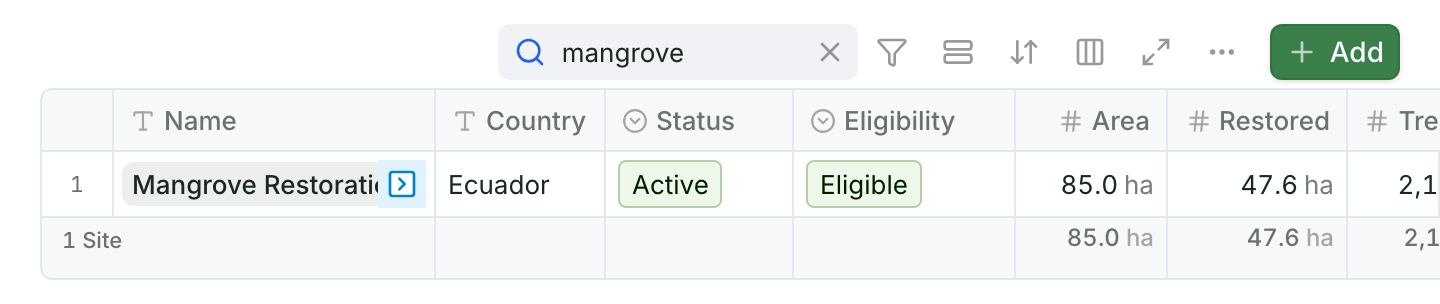
In a table, the search looks in the text of the columns you can see. It skips hidden columns and number, yes/no, photo and file columns. Capitals and accents don't matter.
When the map is on the same page, the connected record layer also shows only the matching records. A search is only for you and isn't saved in the view. To match exact values, for example Status is Planted, use Filter instead: see Filter, sort and save views of a list.
Go to a place: map search
Not every app has this: if you don't see Search place or coordinate (/) when you point at the map's buttons, ask us.
- On the map, click the search button. On a computer you can also press /.
- Type at least 3 characters of a place name, for example a town, and choose one of the results.
- Or type a coordinate: decimal degrees, longitude first (for example
-84.08, 9.93), or a UTM zone with easting and northing (for example17P 491000 1098000). The map moves as soon as it reads the coordinate.
The map flies to the place and marks it with a red dot. Press Esc to close the box.
Longitude comes first. A coordinate copied from Google Maps is latitude first, so swap the two numbers before you paste it, or the map goes to the wrong place.
Place search finds places on the world map, not your records: to find a record, use global search. More ways to move around are in Use the map.