Invite people with a link or QR code
Create a link or QR code that lets people sign up and join your app as viewers or editors, without adding each email.
Admins can create an invite link: anyone who opens it and signs in joins your app as a viewer or an editor. Share it as a link, or show its QR code to a team in the field.
Some apps don't accept invite links. In those, ask us how to add people.
Show a QR code
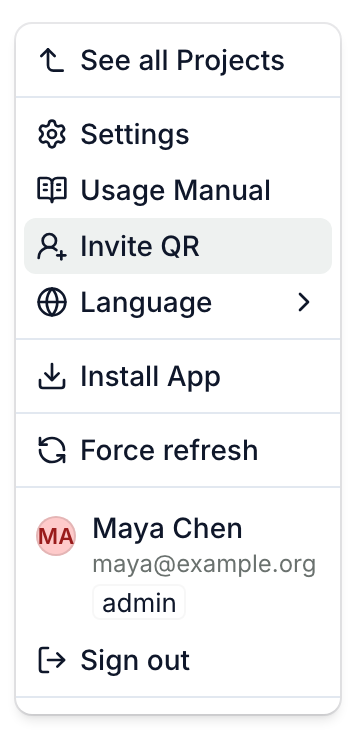
- Click your app's logo in the top-left corner, then click Invite QR.
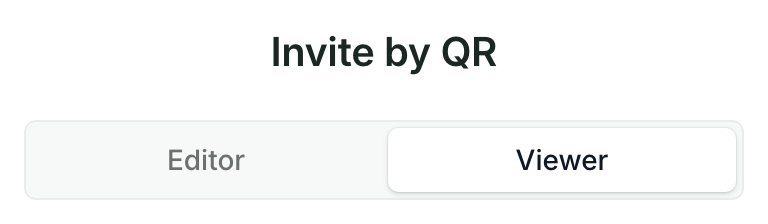
- Choose Editor or Viewer. The window opens on Editor.
- Ask people to scan the code with their phone's camera. Or click Copy link to send it, or Share link where your device offers it.
If there is no working link for that role yet, the app creates one when you open the QR code.
Create and manage links in Settings
- Click your app's logo, then click Settings. Settings opens on Permissions. If it doesn't, click Members & Permissions in the sidebar.
- Scroll down to Invite Link and choose Editor or Viewer.
- If that role has no link yet, click Generate Editor Invite Link (or Generate Viewer Invite Link). If its link has expired, click Regenerate.
- Click Copy Link to copy it, or Show QR to show its QR code.
Each role has its own link.
What happens when someone uses the link
- They open the link or scan the code.
- They sign in with Google or Microsoft. Someone new gets an account this way. See Sign in to your app and sign out.
- They join your app with the link's role, and the app opens.
They then appear on the Permissions page with everyone else, where you can change their role or remove them. See Add users and set their roles.
A link never lowers the role of someone added with their own email address: an editor who opens a viewer link stays an editor. A viewer who opens an editor link becomes an editor. Someone who has access only through an email domain gets the link's role.
Expiry, new links and stopping a link
- A link works for 15 days. The line above its buttons shows how many days are left.
- Regenerate makes a new link that works for another 15 days. The old link stops working.
- Revoke stops the link for good. To invite people again, generate a new link.
- Someone who opens an expired or stopped link sees a message asking them to ask the admin for a new one.
People who already joined keep their access when a link expires or you revoke it. To remove someone, click the trash icon on their row in Permissions.
Anyone who has the link can join. Share an editor link only with people who should edit your data.