Fix common problems
What to do when the app asks you to reload, looks out of date, won't load a page or the map, fails its Offline Check, or holds work that hasn't synced.
Find what you see below and try its fix. Many fixes start from the logo menu: tap your app's logo in the top-left corner.
If the sync icon at the top of the screen shows changes waiting, don't sign out, clear the app's data or reinstall it: those changes still have to reach us. See Check that your changes synced.
"New version available"
A blue message at the top left says New version available.
- Tap Reload app. The app reloads with the newest version.
- To finish what you're doing first, tap Later. The logo menu then shows Refresh app. While changes are sending, files are uploading or you're offline, Refresh app after sync is disabled. Once it changes back to Refresh app, tap it.
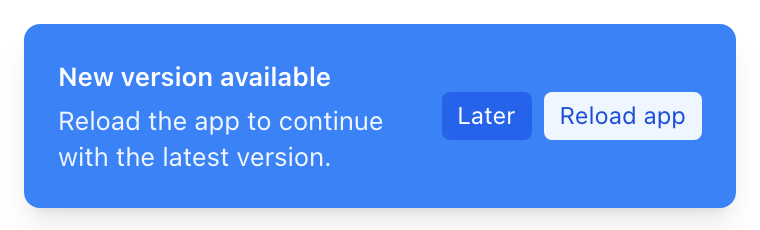
If a whole screen says A new version of the app is available, tap Reload app. If you're offline, the app asks Reload the app? Tap Keep working: the app may not open again until you reconnect.
The app looks out of date
If other people's changes don't show up, check that you're online and let any waiting changes send. Then tap Force refresh in the logo menu to load everything again.
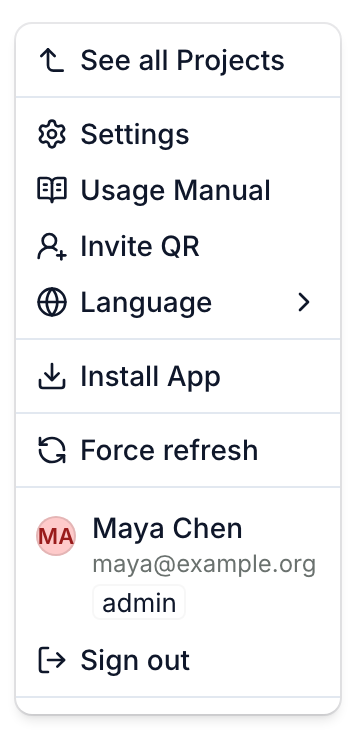
Not every app has this: admins of apps that bring in records from another system can also tap Sync now in the logo menu.
A page or the map won't load
- If the screen says Something went wrong, tap Try again. If that doesn't help, tap Reload app when it shows.
- If it says You're offline, reconnect. The button reads Waiting for connection until you do.
- If the map says Map unavailable, tap Try again. The rest of the page keeps working.
Offline Check isn't all green
On a phone, in apps with offline turned on, run Offline Check from the logo menu while you still have a good connection. Each line that isn't green says what to do. Do it, then tap Run checks again. If it still doesn't say All green., contact us before you go. See Collect data offline in the field.
My changes haven't synced
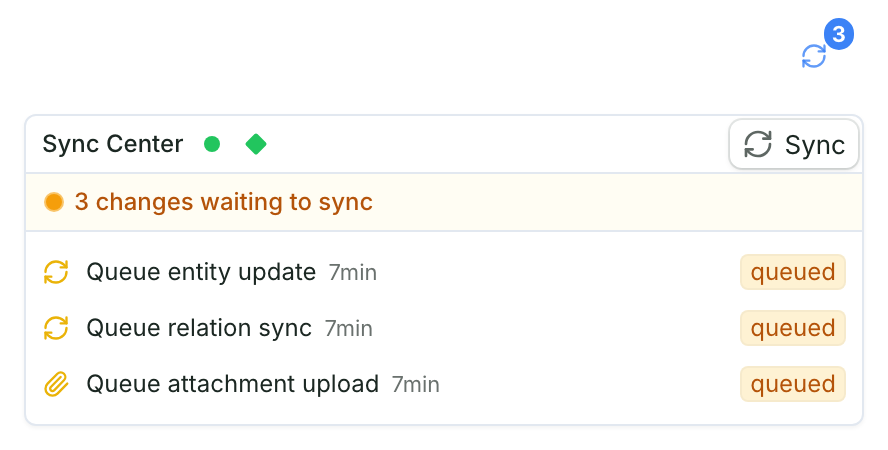
Tap the sync icon to open the Sync Center. Each change shows its status. When you're online and no sync is running, tap Sync to send pending changes. Offline, the button is hidden. You never need to delete a change or enter it again.
Send us work saved on this device
If this device still holds work you saved before your role changed, or we ask for a copy, send one from this device:
- Open the logo menu, then Settings. On a phone, tap the sidebar button beside the page title. No button and No access to this settings section? Contact us.
- Viewers choose Local Capture Recovery. Editors and admins choose Debug and scroll to Local capture recovery.
- Tap Upload to Cloud, and Upload Unattributed too if you can.
A message confirms the upload; the work also stays on this device. Contact us, and keep the app and its data until we confirm we have it.
Details for support
In the RS Field app, editors and admins find the App version and Build number under App info in Debug, at the bottom of the Settings sidebar. Add them when you contact us.
I can't see a record type, a page or a button
What you see depends on your role and your app's setup, and some menu items don't show on a phone: try on a computer. To change your role, ask an admin of your app: see Add users and set their roles.
The GPS point is inaccurate
If the button reads Check GPS permissions, tap it and allow precise location. Otherwise, give the phone a minute with a view of the sky. See Take photos and GPS points in the field.
Get help
Usage Manual in the logo menu opens these guides. Still stuck? Contact us with the page you were on, what you tapped and the exact message. For a change that didn't sync, tap it in the Sync Center, tap Copy details and paste that in.