Download your data
Every way to take data out of the app, from a list as a CSV file to map boundaries and a backup of your files, and which guide shows each one.
You can take your data out of the app as a spreadsheet file or as map files. Viewers, editors and admins can all download. Find what you need below, then follow its guide.
Which download to choose
A list of records, for a spreadsheet
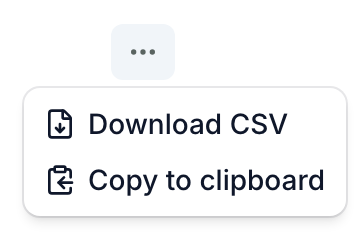
Above a table, click More (⋯), then Download CSV. You get the visible data columns, plus any grouping columns, and every record that matches your filter and search. Copy to clipboard copies the same table to paste into a spreadsheet. On a phone, both are inside View options. See Filter, sort and save views of a list.
A table inside a record's page or a dashboard
A table with a title can have its own ⋯ menu with Download CSV and Copy to clipboard.
The polygons of a map layer
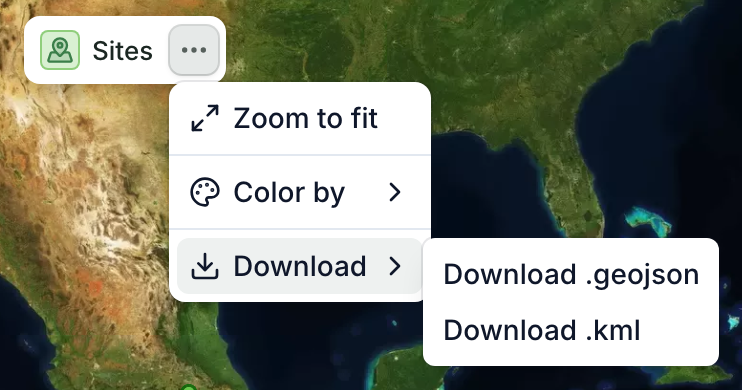
All of them, or only the filtered ones. In the map's legend, open the layer's ⋯ menu and choose Download, then Download .geojson or Download .kml. See Download polygons from the map.
One record's boundary
When its record type offers downloads, open ⋯ on the record's page. On a computer, choose Download, then a format; on a phone, choose Download .geojson or Download .kml directly. On a computer, you can also right-click its shape. See Prepare boundaries for the EUDR or a verifier.
Boundaries for an EUDR statement or a carbon verifier
Download the .geojson or .kml, then check it with a free file checker. See Prepare boundaries for the EUDR or a verifier.
Other downloads in your app
Some apps add their own downloads to certain pages, for example a CSV of a species list. Not every app has these: if you don't see a download you need, ask us.
Request a backup of your files
Only admins can request a backup, and not every app has it: if you don't see Export in Settings, ask us.
- Open Settings. Find your way around Settings shows the way there, on a computer or a phone.
- In the sidebar, under Data, click Export.
- Click Request backup.
You get an email with a link to a .zip of the files stored in your app. The link works for 24 hours.
The backup holds files only, not your records. To keep your records, download each list as CSV.
Which ones need a computer
A layer's polygons need a computer: the layer's ⋯ button appears when you point at the layer in the legend. Right-clicking a shape also works only on a computer. A list as CSV, and one record's boundary from its page, also work on a phone.
What you get
- CSV: opens in Excel, Google Sheets or any spreadsheet. It has no boundaries.
- .geojson: boundaries for QGIS, ArcGIS and most GIS software.
- .kml: boundaries for Google Earth.
There is no Shapefile download. Prepare boundaries for the EUDR or a verifier shows how to turn a .kml or .geojson into one.
To let a funder see your data in the app instead of a file, see Share your project with a funder or donor.