Turn map layers on and add sources
Show extra data over your map, such as protected areas or tree cover loss, and add layers from the source library or from a file.
Layers put extra data over your map: your own records, protected areas, tree cover loss, land cover and more. Anyone can turn layers on and off. Editors and admins can also add new ones.
Turn a layer on or off
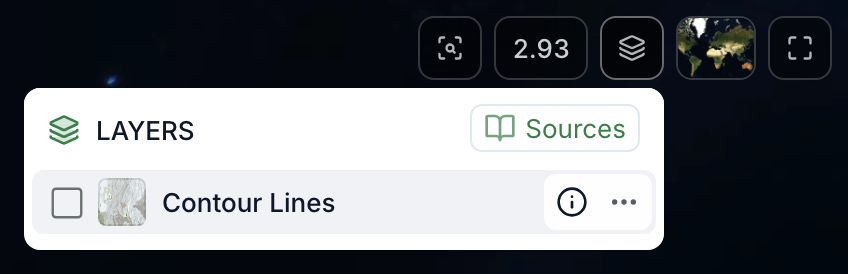
- On the map, click the Layers button (stacked squares) at the top right, or press Shift+L.
- Click a layer to turn it on or off.
Hover over a layer to see more:
- ⓘ tells you where the data comes from.
- ⋯ has Show legend when the layer has a legend. Editors and admins also see Zoom to fit, which moves the map to the layer's data.
Add a layer from the source library
- In the Layers panel, click Sources.
- Find the layer you need. Filter by Coverage (for example Global or Brazil) or Topics (for example Forest & Carbon or Biodiversity), or type in Search layers.
- Click ⊕ at the start of its row (pointing at it shows Add layer).
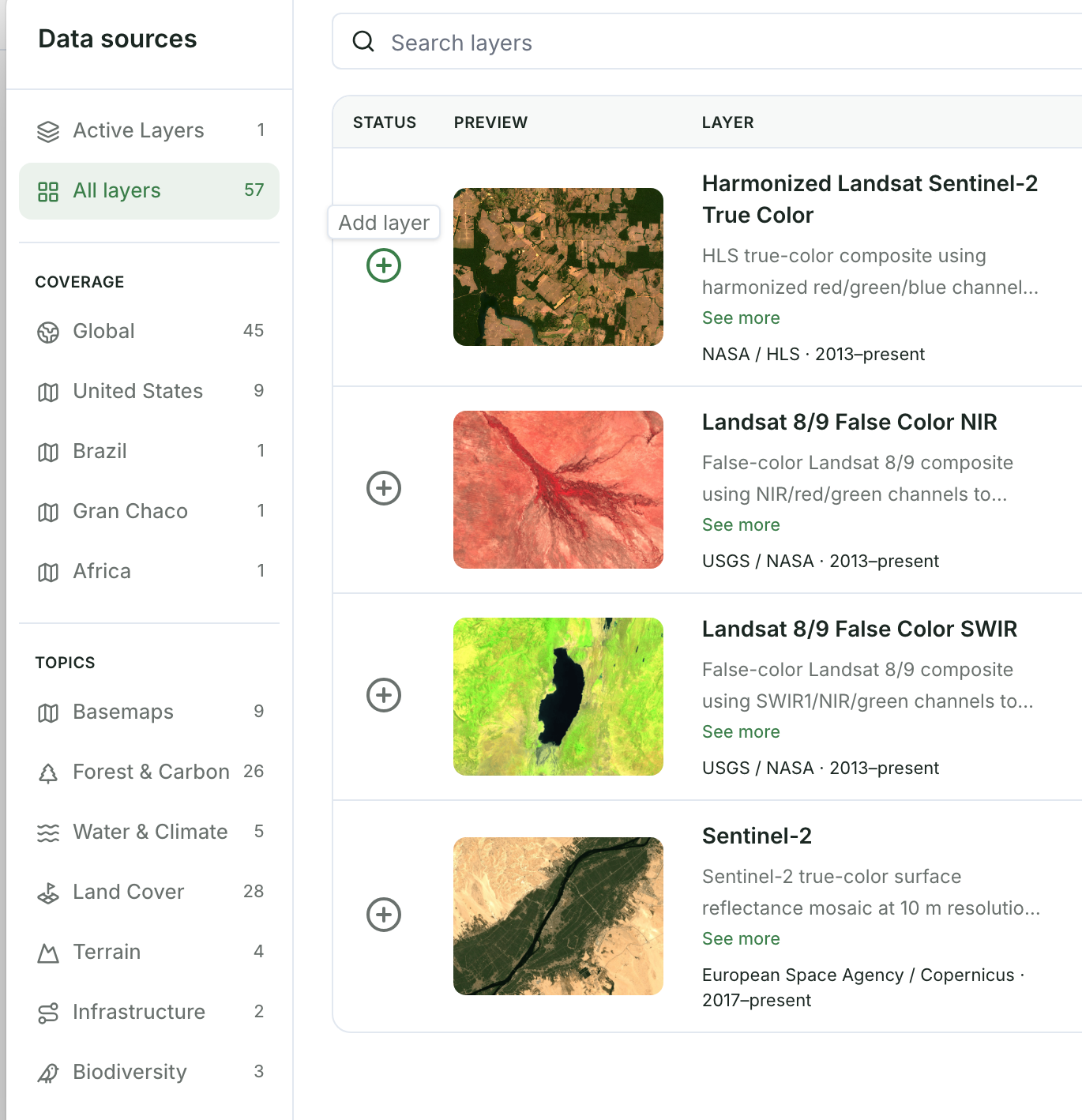
The layer now shows in the Layers panel for everyone in your app. To take it out, click the check mark on the same row (Remove layer).
Add a layer from a file
- Drag a GeoJSON or GeoTIFF file onto the map.
- Give the layer a name and click Upload & process. For a GeoJSON file, click Done when processing finishes; a GeoTIFF window closes on its own.
Drop one file at a time. ZIP files and folders aren't accepted; to bring in a Shapefile, open it in QGIS and export it as GeoJSON first.
Style a layer
On a computer, hover over a GeoJSON layer you uploaded and click ⋯ to change its Color or Hide fill. For a GeoTIFF you uploaded, click the pencil instead and set its Opacity. A layer you uploaded from a file can also be renamed (Rename) or deleted (Delete). On by default makes the layer show when anyone opens the map.
Adding sources and styling layers work on a computer. On a phone, the Layers panel turns layers on and off; editors and admins can also choose Zoom to fit from a layer's ⋯.