Check that your changes synced
The Sync Center shows what your phone still has to send. What each status means, and what to do about it.
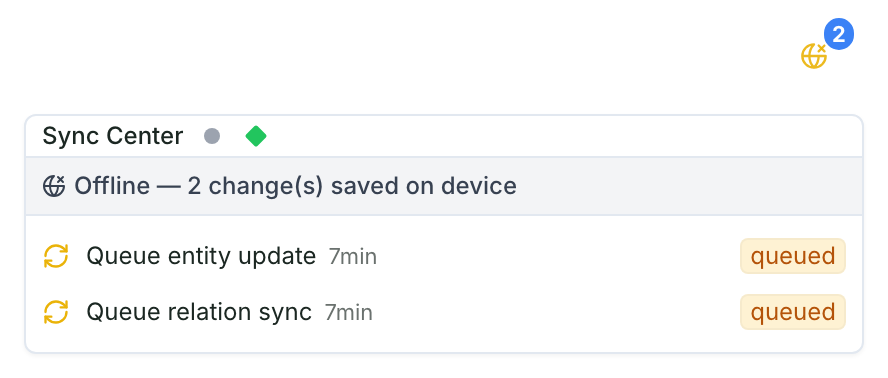
The sync icon at the top of the screen tells you whether your changes have reached Restoration Scope. It goes away once nothing is left to send or process. It stays while you're offline, while a change needs attention or is held for review, and while a background job is listed, even a finished one. Tap it to open the Sync Center and see each change still on your phone.
Read the sync icon
- A globe with a cross: you're offline. Your changes are saved on this phone.
- A number: how many changes are waiting.
- Spinning arrows: your phone is sending changes now.
- A red cloud or red dot: something didn't go through. Open the Sync Center to see what.
What each status means
Tap a change in the Sync Center to see its status and what happens next.
| Status | What it means | What to do |
|---|---|---|
| Waiting to sync | The change is saved on this phone and will be sent as soon as possible. | Nothing. Get a connection and open the app. |
| Waiting to retry | The last attempt didn't go through. The app will try again on its own. | Nothing. |
| In progress | Your phone is sending it now. | Nothing. |
| App update required | This change needs the newest version of the app. | Connect, then tap Reload app on the "New version available" message, or open the logo menu and tap Force refresh. |
| Held for review | Saved: our team will handle it. Nothing to redo. | Nothing. |
| What went wrong | It failed. The message says why. | Tap Retry if it shows. Photos and background jobs have no Retry. If there's no Retry, or it fails again, tap Copy details and send them to us. |
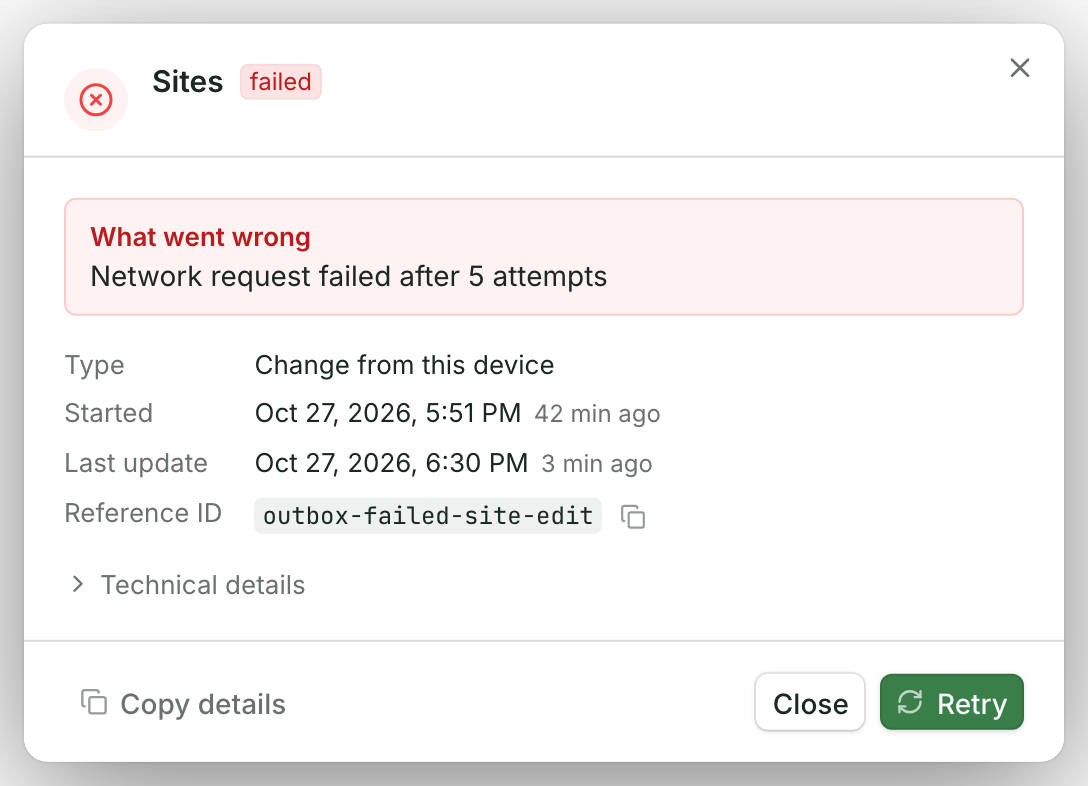
In the list, the same states show as short labels, such as queued, waiting to retry or failed.
You never need to delete a change or enter it again to get it through. Everything your phone sends is kept: if something can't be saved as it is, our team sees it and sorts it out.
Send now
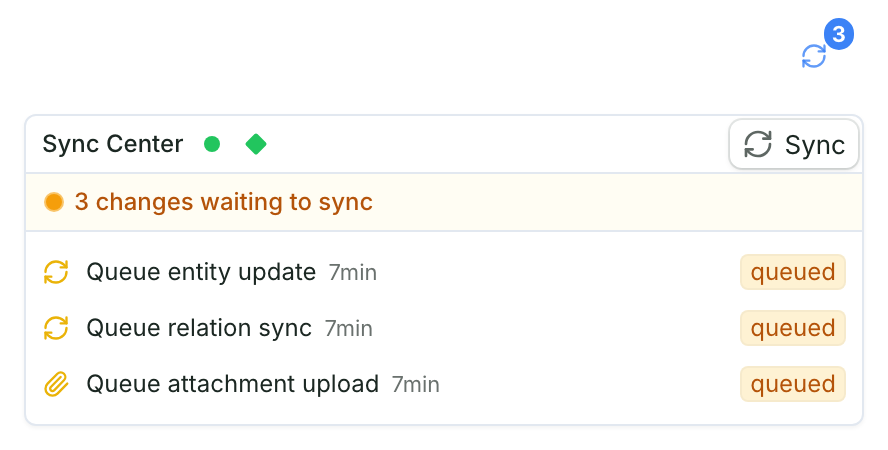
When you're online, tap Sync in the Sync Center to send your changes right away. With no connection the button is hidden, and your changes wait on the phone.
The Sync Center's sections
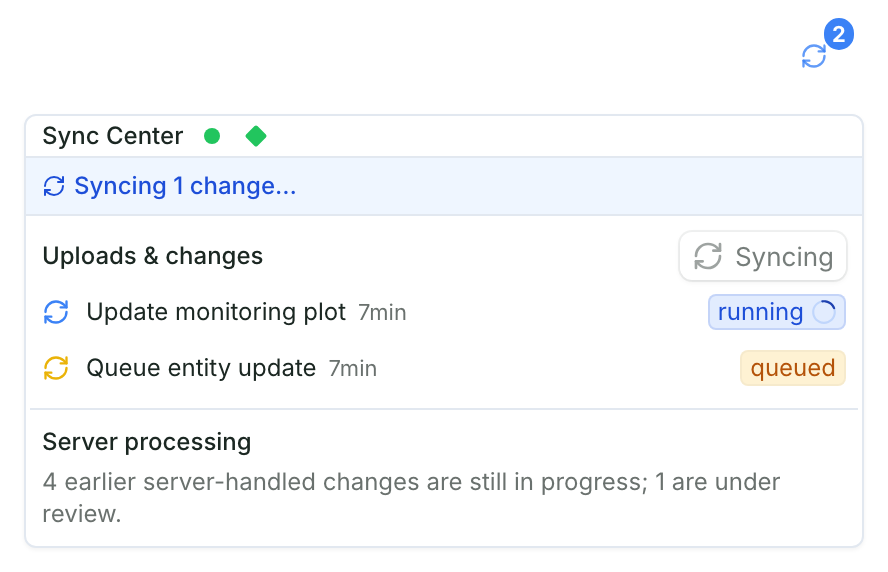
- Uploads & changes: the changes and photos still on this phone.
- Server processing: earlier changes that reached us and are still being processed. Nothing to do.
- Background jobs: longer tasks started from a menu, and how far along they are.
- Work from another user on this device: changes someone else saved on this phone before signing out. Tap Transport followed by the number of items, for example Transport 2 items, to send them, and our team reviews them.
If our team asks you to, open Settings and then Local Capture Recovery (editors and admins find it under Debug), and follow their steps. It sends us a copy of what is stored on the phone.
To get ready for a day without signal, see Collect data offline in the field.