Attach files and photos to a record
Add a document or a photo to a record's file field, open it again, and replace or remove it.
Editors and admins can attach files to a record, such as a PDF report or a signed agreement, in the record's form. Not every app has this: only record types with a file or photo field can hold attachments. If you need one and don't see it, ask us.
Attach a file
- Open the record's form. See Add and edit records.
- Find the file field. An empty one reads Drop file or click to browse.
- Click it and choose a file, or drag a file from your computer onto it.
- Save the form.
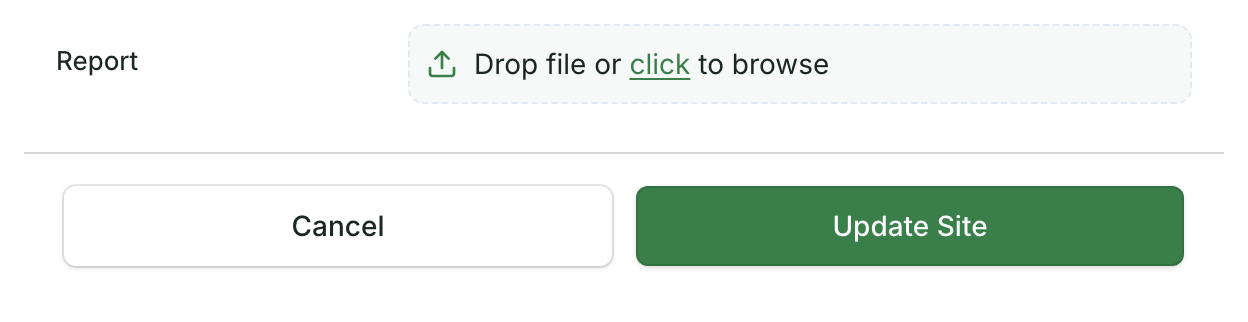
The file's name shows in the field. If the field only takes some file types, they show at the right of the box, for example .pdf. A file of another type isn't added, and a message says "File not accepted".
Some fields hold several files: they read Drop files or click to browse, and Add more files or click to browse once they have one.
Open or download a file
- In the form, click the file's name. This works in fields that hold one file.
- In a table, click the file's name in a column that holds one file. Multiple-file fields currently don't provide working file links in the table.
The file opens in a new browser tab. Save it from there to keep a copy on your computer.
Replace or remove a file
- Open the record's form.
- Click the trash icon next to the file. The field is empty again.
- To replace it, choose the new file.
- Save the form.
Nothing changes until you save: close the form without saving and the old file stays.
Photos
On a computer, drop or choose an image in the photo field. On a phone, a single-photo field may open the camera instead; whether you can also upload an existing photo depends on the field. Fields for several photos show Upload and Take photo. A field for several photos holds up to 10 unless your app sets another limit; each photo has its own remove button. To take photos with your phone's camera and keep where they were taken, see Take photos and GPS points in the field.
On a phone with no connection
If your app works offline, files and photos you save wait on your phone and upload when you're back online. See Collect data offline, and Check that your changes synced to see what is still waiting.
Good to know
Once you replace or remove a file and save, its old link stops working, even for people you sent it to.