Filter, sort and save views of a list
Search, filter, sort and group the records in a table, choose its columns, download it as CSV, and save the result as a view your team can open again.
Use the buttons above a table to search, filter, sort and group its records. Editors and admins can save the result as a view and open it again from the title menu.
The buttons above the table
On a computer the buttons are small icons. Point at one to see its name.

- Search: the magnifier. Type to find records by text.
- Filter: show only the records that match your conditions.
- Sort: change the order of the records.
- Group by columns: put records with the same value together.
- Columns: choose which columns show and in what order.
- Expand table: give the table the whole screen. Not on phones.
- More: Download CSV and Copy to clipboard.
On a phone, and when the panel is narrow, these buttons are folded into one: View options.
Lists that are not tables, such as cards, have only search, Filter, Sort and Group.
Filter records
- Click Filter.
- Click Select field... and choose a field, for example Status.
- Choose how to compare and the value.
- Click + Add condition for another rule. Between rules, choose and (all must match) or or (any can match).
- Add group nests rules, for example "status is Planted and (species is Oak or species is Pine)". Clear all removes every rule.
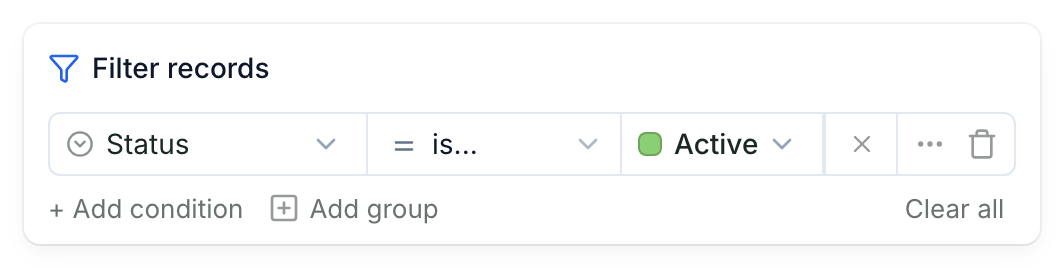
The count next to the title shows how many records match.
When the map is on the same page, the connected record layer shows only the records the table shows. Other layers keep all their records. This is how you download the polygons you filtered.
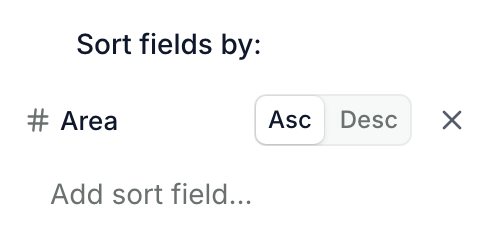
Sort and group
- Sort: under Sort fields by:, click Select a field..., choose a field, then Asc or Desc. A field added with Add sort field... becomes the main sort; earlier fields break ties.
- Group by columns: under Group records by:, choose a field. Collapse all and Expand all open or close every group.
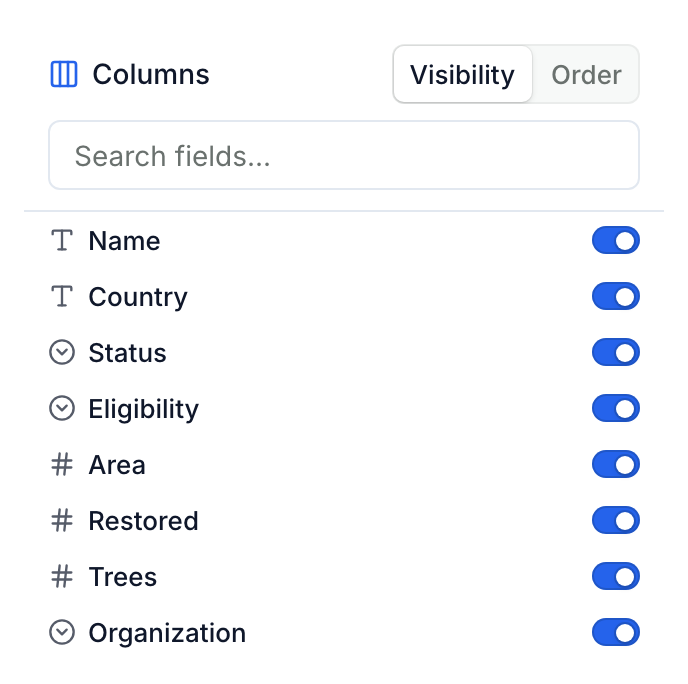
Choose the columns
Click Columns.
- On Visibility, switch columns on or off. Search fields... finds one; Show all and Hide all do every column.
- On Order, drag columns into the order you want.
Download or copy the table
Click More, then:
- Download CSV saves a file with the columns you see, plus any column you group by even if it's hidden, and every record that matches your filter and search, not only the ones on screen.
- Copy to clipboard copies the same table, ready to paste into a spreadsheet.
Save a view
A view keeps filters, sorting, grouping and columns under a name. Editors and admins save views; viewers use them.
Changes stay unsaved until you save them, and a search is never saved. Filters survive a reload, but a new tab or a link you send opens the view as it was saved.
When you have changes, a save button appears next to the table buttons:
- Save updates your personal view.
- Save for everyone updates a shared view for everyone who opens it.
- The arrow next to it has Save as new view, and Reset to drop your changes.
To start a new view from scratch:
- Click the list's title (for example All Trees) to open the views menu.
- Click Add view.
- Type a View name.
- Under Who can edit, choose:
- Personal: only you see it.
- Collaborative: editors and admins can see and change it.
- Locked: everyone sees it, only admins can change it. Only admins can choose this.
- Click Create.
The new view keeps the filters, sorting, grouping and columns you have on screen.
Manage views
Open the views menu from the list's title. Views are grouped under Default, Personal, Collaborative and Locked. Click a view to open it.
The ⋯ button next to a view has:
- Copy link to view: send a teammate straight to this view.
- Rename view and Duplicate view.
- Make default view: the view everyone sees first.
- Hide map by default: open this view without the map.
- Delete view.
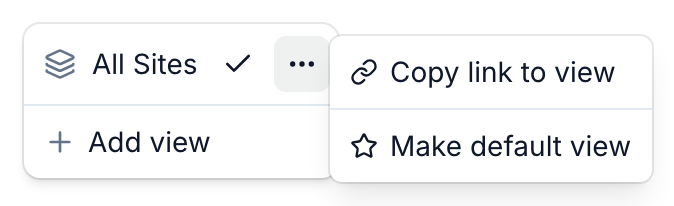
Which of these you see depends on your role and who can edit the view.