Tables, boards, cards and other list layouts
The ways a list of records can show, from a table to a board or a timeline, what each one is good for, and how to switch when a page offers more than one.
A list of records can show as a table, a simple list, cards, a board, a flow diagram or a timeline. Not every app has every layout: which ones a page offers is set up for your app, so if you don't see the one you need, ask us.
The layouts
- Table: one row per record and one column per field. Best for comparing values, choosing columns and downloading a CSV.
- List: one row per record with its name and a few key values, sometimes a small photo. Good for scanning a long list in a narrow panel or on a phone.
- Cards: a grid of cards, each with a photo on top, the record's name and a few values. Good when the photo tells you the most.
- Board: one column per value of a field, for example one column per Status, with a card for each record. Each column header shows how many records it holds. Records with no value, or a value that has no column, go to Unassigned. Good for seeing where records stand in a process.
- Flow diagram: records flow from left to right through a few fields, one column of boxes per field. The wider a band, the more records take that path (or, when set up that way, the larger the total of a number field). On a computer, point at a band or a box to see the number.
- Timeline: records placed by date. Some timelines list records with the newest first. Others draw each record across a calendar: choose the scale with Week, Month, Quarter or Year, and click Today to jump to today.
In a table, list, cards or board, click a record to open it.
What you can do in each layout
| Layout | Search | Filter | Sort | Group by columns |
|---|---|---|---|---|
| Table | Yes | Yes | Yes | Yes |
| List | Yes | Yes | Yes | Yes |
| Cards | Yes | Yes | Yes | Yes |
| Board | Yes | Yes | Yes, inside each column | No: the columns are the groups |
| Flow diagram | No | Yes | No | No |
Timelines vary: some have Filter, Sort and Group by columns, others have no buttons.
These buttons work the same way in every layout that has them. The steps, and the table-only buttons such as Columns, are in Filter, sort and save views of a list.
On a phone, and when the panel is narrow, a table's or a list's buttons fold into one: View options.
Switch to another layout
When a page offers more than one layout for the same list, each layout comes as a view.
- Click the list's title (for example All Trees) to open the views menu. Some pages show the views as buttons side by side instead.
- Click the view you want.
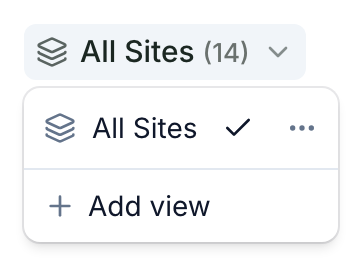
The list redraws in that view's layout, with that view's filters, sorting and grouping.
What carries over
- Each saved view keeps its own layout. When editors and admins click Add view, the new view uses the layout they are in; Duplicate view keeps the layout of the view it copies. You can't change a saved view's layout yourself: ask us.
- Opening another view applies that view's saved filters and sorting, and drops the changes you haven't saved. Editors and admins can keep them by saving a view first.
A board's cards can't be dragged to another column. Editors and admins move a record by opening it and changing the field, as in Add and edit records.