Install the app on your phone
Get the RS Field app from the App Store or Google Play, or add your app to your phone's home screen from the browser.
There are two ways to have your app on your phone: install the RS Field app from the App Store or Google Play, or add your app to the home screen from your phone's browser. Both open your projects with the same account.
Install RS Field
- On your phone, open the App Store or Google Play and install the app.
- Open RS Field and sign in with the email address your team added.
RS Field asks to use your location and camera, to record GPS points and take photos. Allow both.
Add your app to the home screen
Your app shows Install App only if we set it up for installing. If you don't see it, ask us.
- Open your app in your phone's browser and sign in.
- Tap your app's logo in the top-left corner, then Install App.
- Follow the steps the app shows for your phone:
- iPhone, Safari: tap Share, choose Add to Home Screen, then tap Add.
- iPhone, another browser: open your browser's Share menu, choose Add to Home Screen, then tap Add. On older iPhones, the app asks you to open the page in Safari first: tap Copy URL, paste it into Safari and follow the Safari steps.
- Android: tap Install if the app shows it. Otherwise tap your browser's menu (⋮), choose Add to Home Screen or Install App, then tap Add or Install.
- Open your app from its new icon on the home screen.
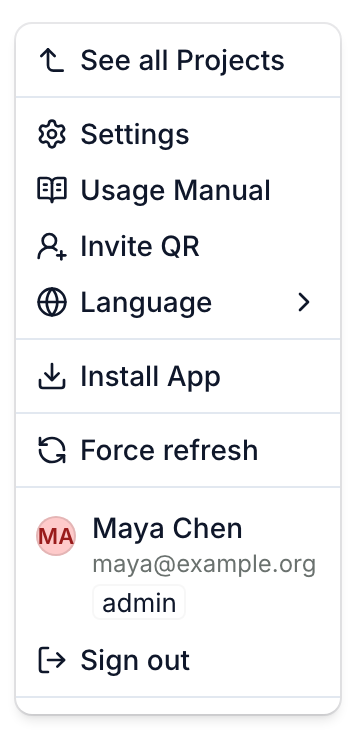
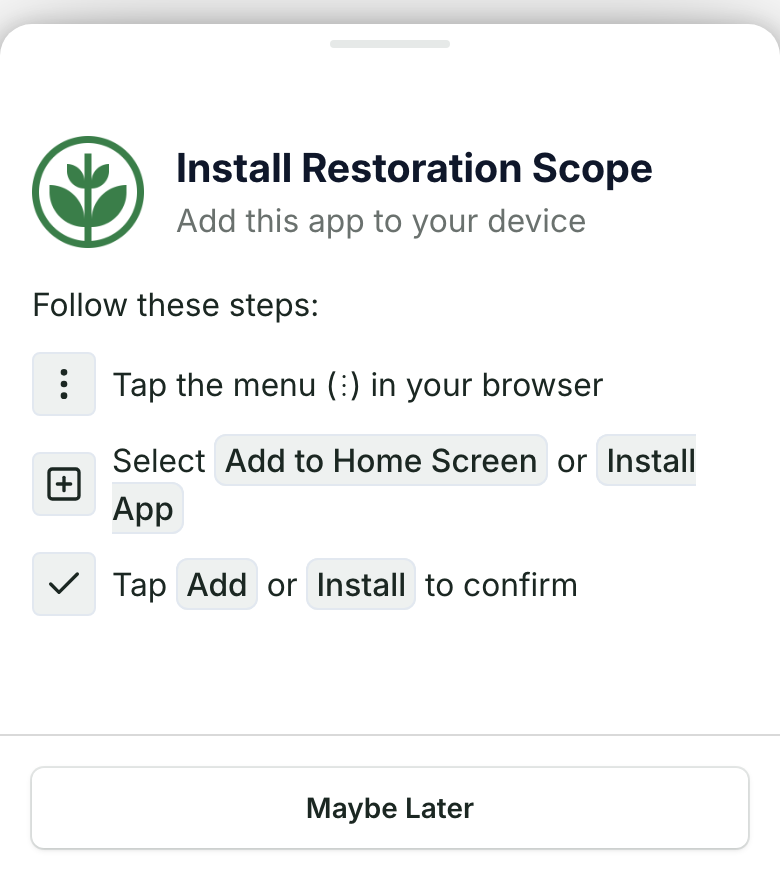
The steps show only in a phone's browser. If you opened the app from its home screen icon, it's already installed.
Open a public app on your phone
On a public app that is set up for installing, the same menu has Show App QR. Click it on your computer and scan the code with your phone's camera to open the app there.
To work with no signal, see Collect data offline in the field. Installing the app doesn't turn offline on by itself.