Find your way around Settings
What each section of Settings is for, who sees it, and which guide covers it, from your account to people, teams, map layers and record types.
Settings holds your account, who can use your app, and how its data is set up. Everyone can open it, but what you see depends on your role.
Open Settings
- Click your app's logo in the top-left corner.
- Click Settings.
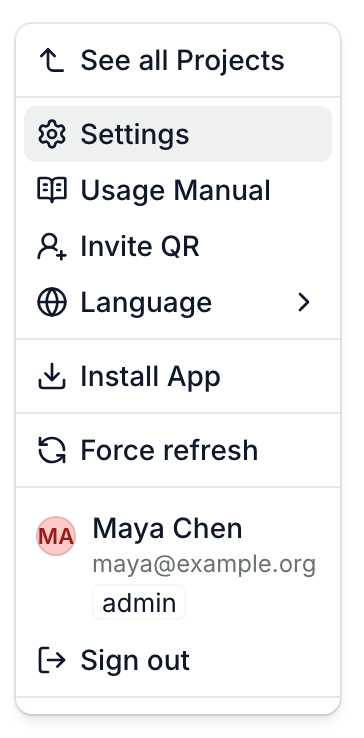
- Click a section in the sidebar on the left. On a phone, first tap the sidebar button next to the page title.
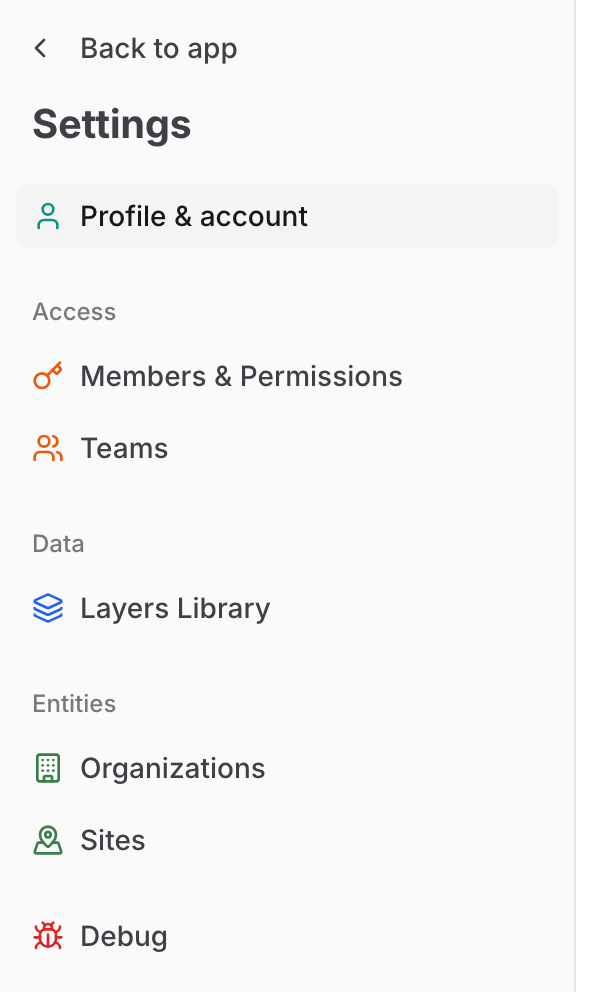
Admins land on Members & Permissions, editors on Forms, and viewers on Profile & account. Back to app, at the top of the sidebar, takes you back.
Your account
Everyone sees Profile & account: your name, your email address and Delete account. For your language and signing out, see Change the language, sign out or delete your account.
People
Only admins see the Access group.
- Members & Permissions: who can open your app, with which role, and your invite links. See Add users and set their roles and Invite people with a link or QR code.
- Teams: named groups of people. See Group people into teams.
Map layers and data
Editors and admins see the Data group. Not every app has every section: if you don't see one, ask us.
- Layers Library: the map layers your team uploaded from files, including ones still processing. You can rename or delete them here. To add one, see Turn map layers on and add sources.
- Data Architecture: a diagram of your record types and how they connect. Turn on All fields to see every field.
- Survey Flow: a diagram of your app's surveys, stage by stage.
- Forms: the forms your app collects data with.
- Export: admins only, in some apps. Request backup emails you a download link for a .zip of the app's stored files. The link works for 24 hours.
- Data Destinations: the Google Sheets configured to receive your records. Where automatic sync status is configured, it also shows the sync state and last successful write.
Record types
Under Entities, editors and admins see an entry for each record type their role can access, for example Trees and Sites. Click one to see its fields. In some apps, admins can also add a record type with New entity.
Problems with the app on this device
For the app's version on this device, or work saved on it that hasn't reached us, see Fix common problems.
If a section says you have no access
No access to this settings section means your role doesn't include that section. Ask an admin of your app to change your role: see Add users and set their roles.
Editors also see it when Settings opens in an app without forms: click a section in the sidebar instead. On a phone, that screen has no sidebar button, so open Settings on a computer.