Group people into teams
Admins can group the people who use your app into teams. What a team does, and what it doesn't.
A team is a named group of people who already have access to your app, such as "Field team" or "Nursery". Only admins can see and change teams.
What a team does and doesn't do
- It groups people and shows how many are in each team.
- It doesn't change anyone's role or what they can see. Roles are set on the Permissions page: see Add users and set their roles.
- A team can open the app on a chosen page for its members. We set this up for you: ask us.
- In some apps we build, a team decides which records its members see, for example each partner sees only their own sites. We set this up for you too; you can't change it in Teams.
Create a team
- Click your app's logo in the top-left corner, then click Settings.
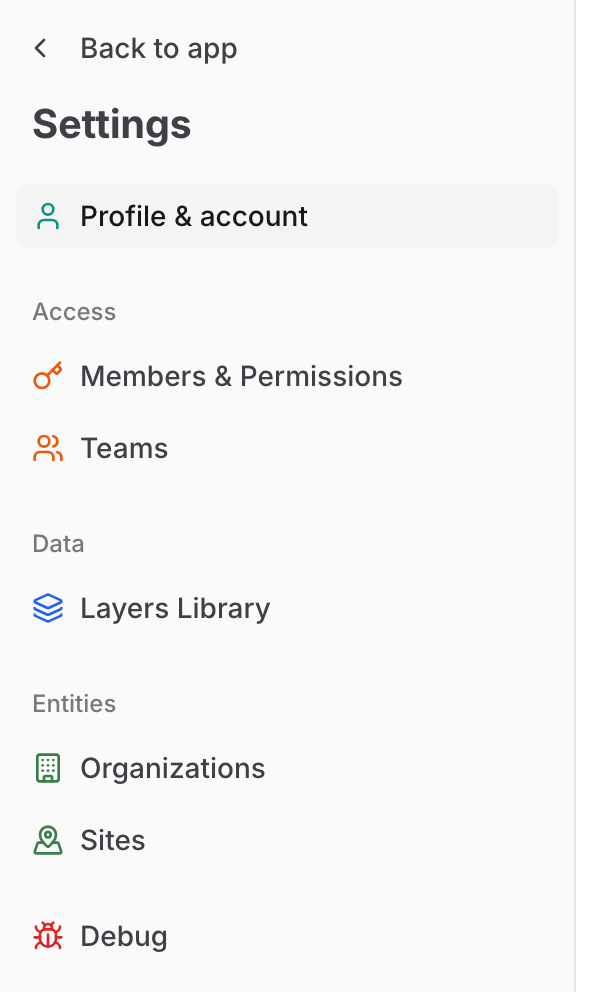
- In the sidebar, under Access, click Teams. On a phone, first tap the sidebar button next to the page title.
- Click Create Team.
- Type a Team name and, if you like, a Description. Click Create.
Add and remove members
- In Teams, click the team in the list on the left.
- Click Add Member and choose a person.
- To take someone out of the team, click the trash icon on their row. They keep their access to the app.
Add Member lists people added to your app with their own email address, including people who joined with an invite link, and people who joined through their organisation's email domain once they have signed in. Someone with domain access who hasn't signed in yet doesn't show; add their email first. To add new people, use their email or an invite link: see Add users and set their roles and Invite people with a link or QR code.
A member marked No tenant access is still in the team but no longer has access to your app.
Rename a team
Click the pencil icon next to the team's name. Change the Team name or Description and click Save.
You can't delete a team in Teams. Ask us if you need one removed.