Add, edit and delete records
Add a record from a list, inside another record or on the map, change its fields, delete it, and what happens when you save with no connection.
Editors and admins can add, edit and delete records. Your app can narrow this for some record types: for example, only admins may add some, and some can't be deleted at all.
Add a record from a list
- Open the list, for example Trees.
- Click Add, next to the list's buttons.
- A form opens, titled New followed by the record type, for example New Tree. Fill in the fields.
- Click Create followed by the record type, for example Create Tree.
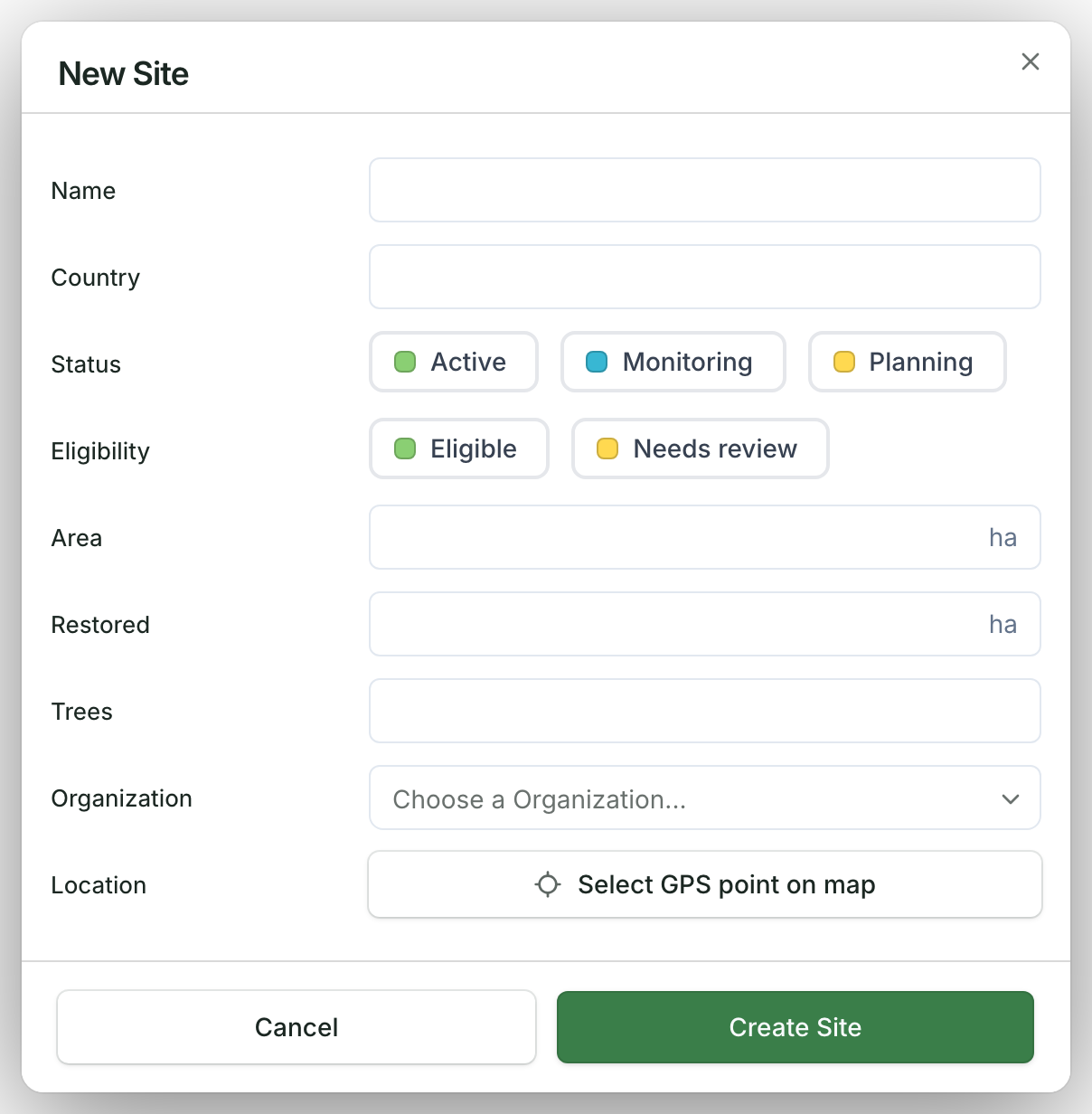
The new record shows right away. Usually its page opens next; some apps keep you on the list.
If a required field is empty, the form doesn't save: it marks the field and scrolls to it.
To give it a point, boundary or line, see Draw a boundary, line or point on the map. To add many records at once, see Import records from a spreadsheet or map file.
Add a record inside another record
On a record's page, a list of the records that belong to it has its own Add button: for example, the trees on a site's page. When that list is empty, the button reads New followed by the record type, for example New Tree.
The record you add is linked to the record you're on.
Add a record on the map
On a computer:
- Open the list of that record type with its map, for example Trees.
- Right-click the spot on the map.
- Click the item that names the record type, for example Create Tree here. The coordinates show below it.
- The form opens with that location filled in. Fill in the rest and click Create Tree.
Not every app has this: if you don't see Create Tree here, ask us. To draw a shape instead, see Draw a boundary, line or point on the map.
Edit a record
- Open the record and click Edit (or press E). You also find it when you right-click the record's row in a list (Edit followed by the record type, for example Edit Tree) or the record on the map (Edit).
- Change the fields.
- Click Update followed by the record type, for example Update Tree.
Your change shows at once, before the server confirms it. If someone else changed the same field in the meantime, their newer value is kept and the app tells you: "Some fields were updated by someone else and kept their newer values".
If you close the form with changes you haven't saved, the app asks first. Keep editing takes you back to the form.
Some fields can be changed only by admins, so they don't show in an editor's form. Some apps also let people edit the records they added themselves.
To move a point or reshape a boundary, see Fix a record's location on the map.
Delete a record
- Open the record, click ⋯ next to Edit, then Delete. You can also right-click its row in a list and choose Delete followed by the record type, or right-click it on the map and choose Delete.
- The app asks you to confirm and names the record. If records inside it will be deleted too, it lists them after This will also delete:.
- Click Delete.
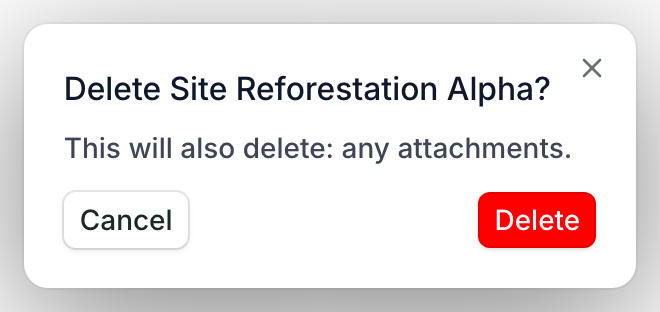
If you were on its page, you go back to the list, or to the record it lived inside.
If you don't see Delete, your app doesn't allow deleting that record type, or not with your role.
With no connection
On a phone with offline turned on, what you add, edit or delete with no connection is saved on your phone. After an edit, the app shows "Saved offline — we’ll sync when you’re back online".
Stay signed in until it has synced. See Collect data offline in the field and Check that your changes synced.