Read the map legend and change how a layer looks
Turn record layers on and off from the legend, color a layer by a field and read its color scale, filter it, hide its fill, and zoom to it.
The legend lists the record layers on the map, for example Trees and Sites, with the color or icon each one uses. On a computer it sits at the top left of the map. On a phone, the same rows sit at the top of the Layers panel, where tapping one turns it on or off.
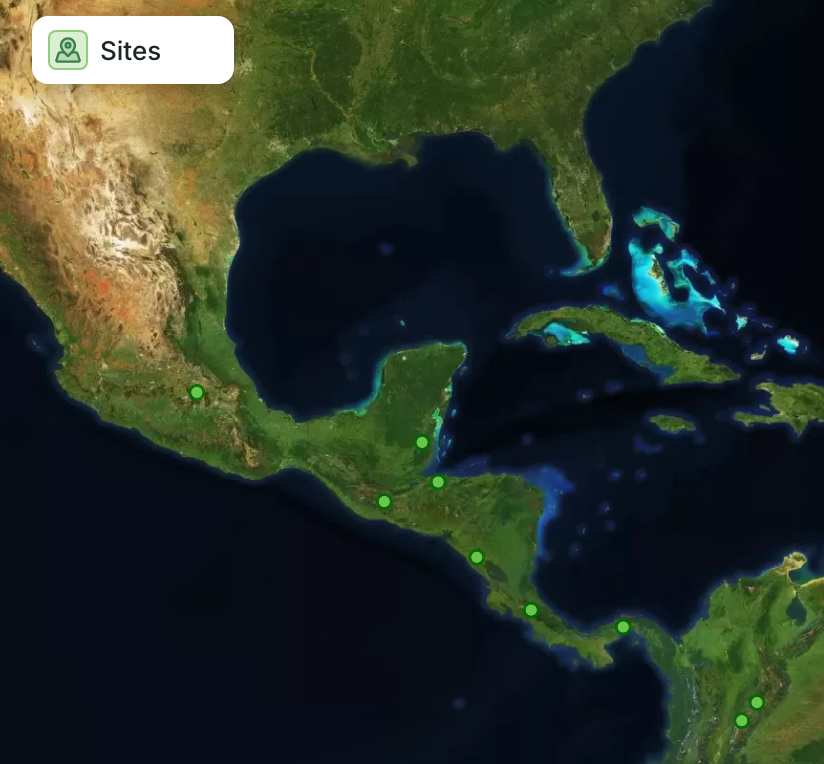
Turn a layer on or off
Click a layer's name. A hidden layer fades and shows a crossed-out eye. A spinner means the layer is still loading; a red mark means it couldn't load.
With more than five layers, the rest fold under Show followed by how many, for example Show 2 more. Show less folds them again.
The layer menu
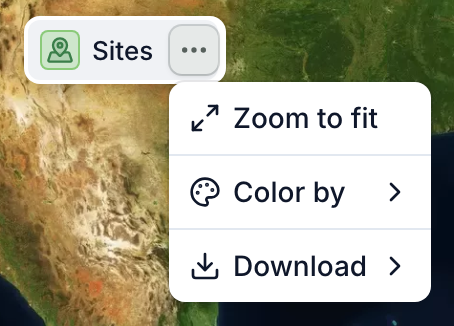
On a computer, point at a layer and click ⋯. Which items you see depends on the layer:
- Zoom to fit moves the map to the layer's records, only the ones its filter leaves.
- Filter shows only some of its records. See below.
- Color by colors its records by a field. See below.
- Show legend shows or hides its color scale, once the layer is colored by a field.
- Hide fill shows only the outlines of boundaries, so you can see the imagery inside.
- Download saves its shapes as a file: see Download polygons from the map.
Color a layer by a field
- Click ⋯, then Color by.
- Choose a field, for example Status. To find one, type in Search fields....
- To go back, choose Default, then Original color for the layer's own color, or a color under Solid color to paint every record the same.
The fields you can choose are the ones your app set up for that layer.
Each record now takes the color of its value, and the color scale shows under the layer's name:
- A field with set values, such as Status: one color per value, for example Planted. After five values, a number shows how many more there are.
- A number field: a color bar from the lowest value to the highest.
- A yes/no field: T for yes and F for no. Some layers add ? for empty.
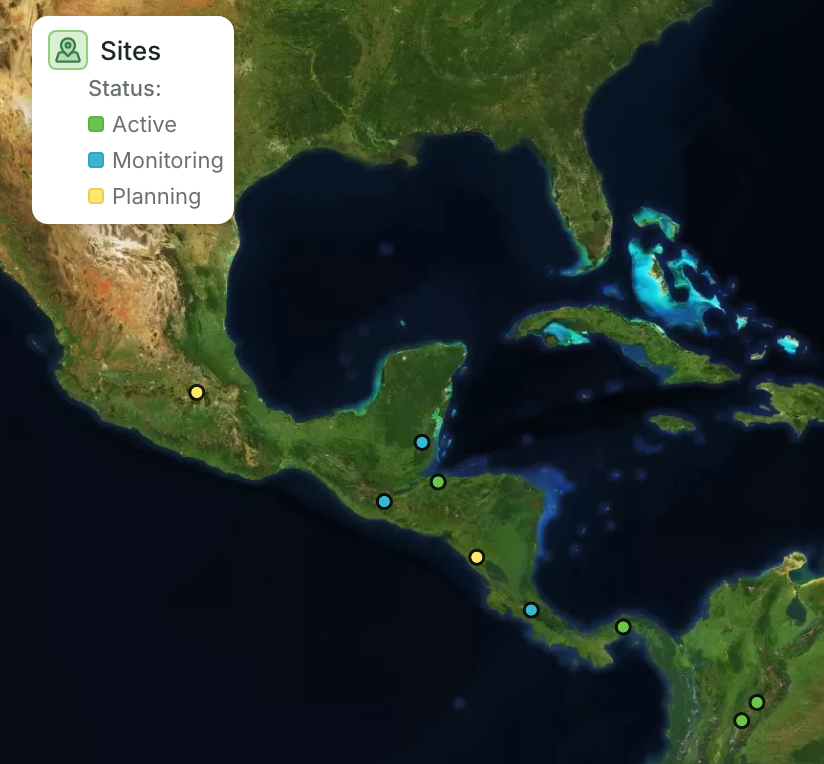
The scale shows only while the layer is on. Show legend in the same menu hides it without changing the colors.
Your color choice is only for you, and it goes back to the app's colors when you reload the page.
Filter a layer
When a layer can be filtered, a funnel button sits next to its name, and Filter is in its ⋯ menu. Both open the same filter rules as a table: see Filter, sort and save views of a list for how to build them. While a filter is on, the funnel turns blue and Filter shows a check mark.
When the page also has a table of the same records, that layer is the connected record layer: it shares the table's filter, so a filter set in either place applies to both. A filter on any other layer applies to that layer only.
Zoom to fit and Download use only the records the filter leaves.
Legends of other layers
Layers you turn on from Layers, such as protected areas, show their own legend under the record layers when they have one. To turn those layers on and off, see Turn map layers on and add sources.