Scan a QR code or barcode in a form
Fill in a code field with your phone's camera, or type the code by hand when a card or label won't scan.
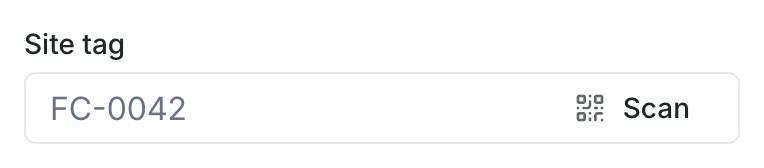
Some forms ask for a code printed on a card, tag or label, as a QR code or a barcode. Tap Scan to read it with your phone's camera, or type it in. Not every app has these fields: they show only where your app asks for a code.
Scan the code
- In the form, tap Scan at the right of the code field.
- If your phone asks to use the camera, allow it.
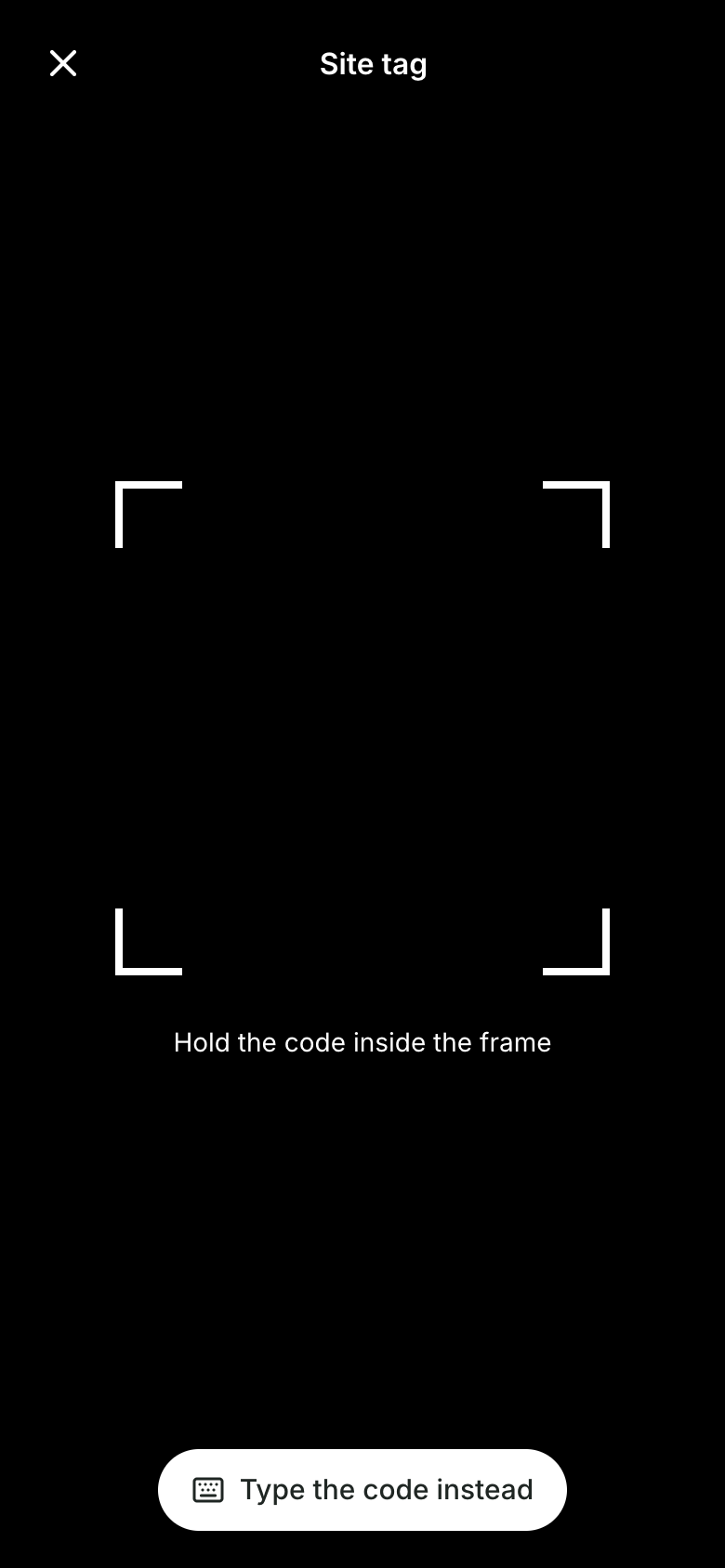
- Hold the code inside the frame. When the app reads it, the code fills the field.
- Check the code, then save or submit the form as usual.
When a code won't scan
If the camera can't read the code, for example because the card is wet, faded or damaged:
- Tap Type the code instead at the bottom of the camera view.
- Type the code as it's printed on the card or label.
If the camera says "This code is not the one asked for." or "This is not a code like" followed by an example, check that you're scanning the right card. If it's the right one, type the code instead and tell us, so we can fix the field for your team.
If the phone can't scan, the field says "This phone can’t scan here. Type the code instead." Tap the field and type the code.
A typed code that doesn't look like the example shows a note under the field ending in "It will be saved as typed." Check it, then carry on: the code is saved as you typed it.
For the rest of the form, see Fill in and submit a form.