How to Submit an EUDR Due Diligence Statement in TRACES, Screen by Screen
Every screen of the EU Information System (TRACES) from Create to the reference number: what each field takes, the geolocation rules, the 72-hour amend window.
You submit an EUDR due diligence statement in the EU Information System, part of TRACES: sign in with EU Login, open Documents > EU Deforestation, click Create > As Operator (Representing Operator if you file for another company), fill in the activity, each product's customs code, description and quantity, and the geolocation of every plot, Submit and Confirm & Sign. Once the statement turns AVAILABLE, the system shows its reference number, which goes on the customs declaration for an import or export, and to your buyer. You can normally amend or withdraw it for up to 72 hours after that.
This guide from Restoration Scope, which keeps exporters' plot files between harvests, walks through each screen in order, with the field names the system uses, for the person at an EU importer, exporter or authorised representative who will do the filing. Not sure you have to file, or from when? The  EUDR scope checker tells you.
Checked 1 November 2026 against the Commission's Information System user guide (last updated 16 September 2026), the system's own
validation rules,
Implementing Regulation (EU) 2024/3084 as amended in 2026, and Annex II of
Regulation (EU) 2023/1115, which lists what a statement must contain. The screens below come from that user guide, taken on the acceptance server; the live system may look slightly different. A plain-language guide, not legal advice.
What do you need before you start?
The EUDR compliance checklist covers how to collect it, and the statement prep sheet lists every field for your role and products.
- An EU Login account in your own name. The guide asks for a real person, not a shared company account, because what you sign has legal value.
- Your company registered with the Operator role. On first sign-in you search for your company and either join it or create it, then pick the activity type: EUDR Operator, or EUDR Authorised Representative if you file for others under their written mandate. A company established in the EU is validated automatically; one established outside it (Northern Ireland aside) also needs an EU EORI number and validation by the Commission's SANTE helpdesk, requested by email with a competent authority of the Member State that issued the EORI in copy. Anyone but the company's first user joining a registered company waits for a colleague with ADMIN rights to approve them.
- An EORI number on that registration if you import or export. Without one the Import and Export options don't appear. An operator outside the EU can only file imports.
- For each product: its customs (HS) code to at least the digits Annex I lists, a description including its trade name, the net mass in kilograms for imports and exports (plus a supplementary unit, such as a number of items or cubic metres, where the code calls for one), and for wood the full scientific name and a common name of each species. TheHS code lookup finds the code.
- The plots: the coordinates of every plot; to upload them for each producer, as shown here, one GeoJSON file per country of production, in WGS 84 (EPSG:4326) with longitude before latitude, and a closed polygon without holes for every plot over 4 hectares (cattle excepted). Run it through theEUDR plot file checker first; the system rejects self-intersecting polygons.
- Your due diligence, finished. Signing declares it found no or only negligible risk that the goods are not deforestation-free or not legally produced. TheEUDR plot viewer puts satellite imagery of each plot from late 2020, before the cutoff, beside the last six months.
Practise on the acceptance server before the live one at
eudr.webcloud.ec.europa.eu. Each needs its own registration.
Step 1: Where do you create a new statement?
From the home page, open the statements dashboard. It lists your company's statements with their status; archived ones are found through Advanced Search.
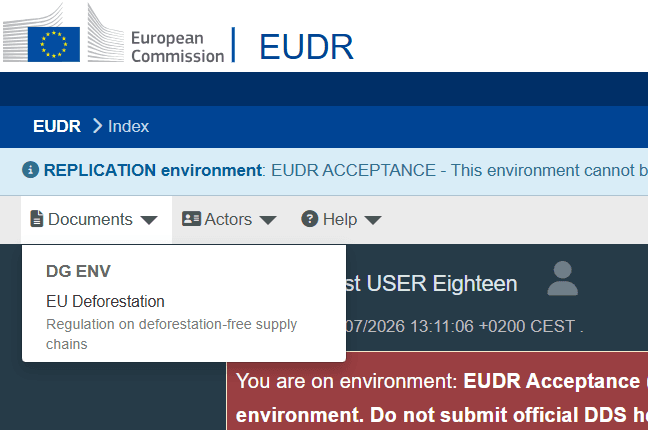
Documents. Open Documents in the top menu.
EU Deforestation. Choose EU Deforestation to reach the statements dashboard.
Which server. The blue and red banners mean you are on the acceptance server, where nothing has legal value.
On the dashboard, Create asks who you are filing as. A pop-up then asks for an internal reference number: your own label for finding the statement later. Leave it blank and the system makes one; if you type one, leave out spaces, which can affect searching later. The two Micro & Small Primary Operator entries are for the simplified declaration: filed once per activity, not per shipment, by a micro or small primary operator established in a low-risk country, for goods it produces there. An authorised representative picks Representing Micro & Small Primary Operator.
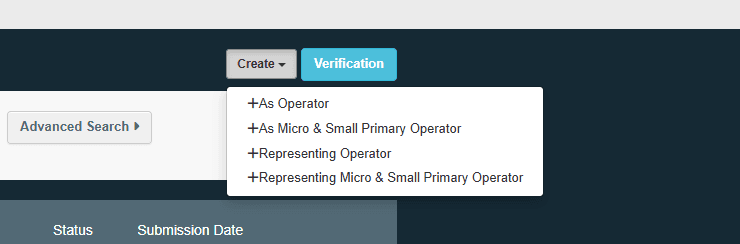
Create. Create opens the menu of statement types.
As Operator. Pick As Operator to file for your own company.
Representing Operator. Authorised representatives pick Representing Operator and fill in the operator they act for. The Micro & Small entries are for simplified declarations by micro and small primary operators in low-risk countries.
Step 2: What goes in the statement details?
The New Statement form has seven numbered sections. Only Activity, Operator/Trader name and address and Commodity(ies) or Product(s) are required; the red asterisks mark them.
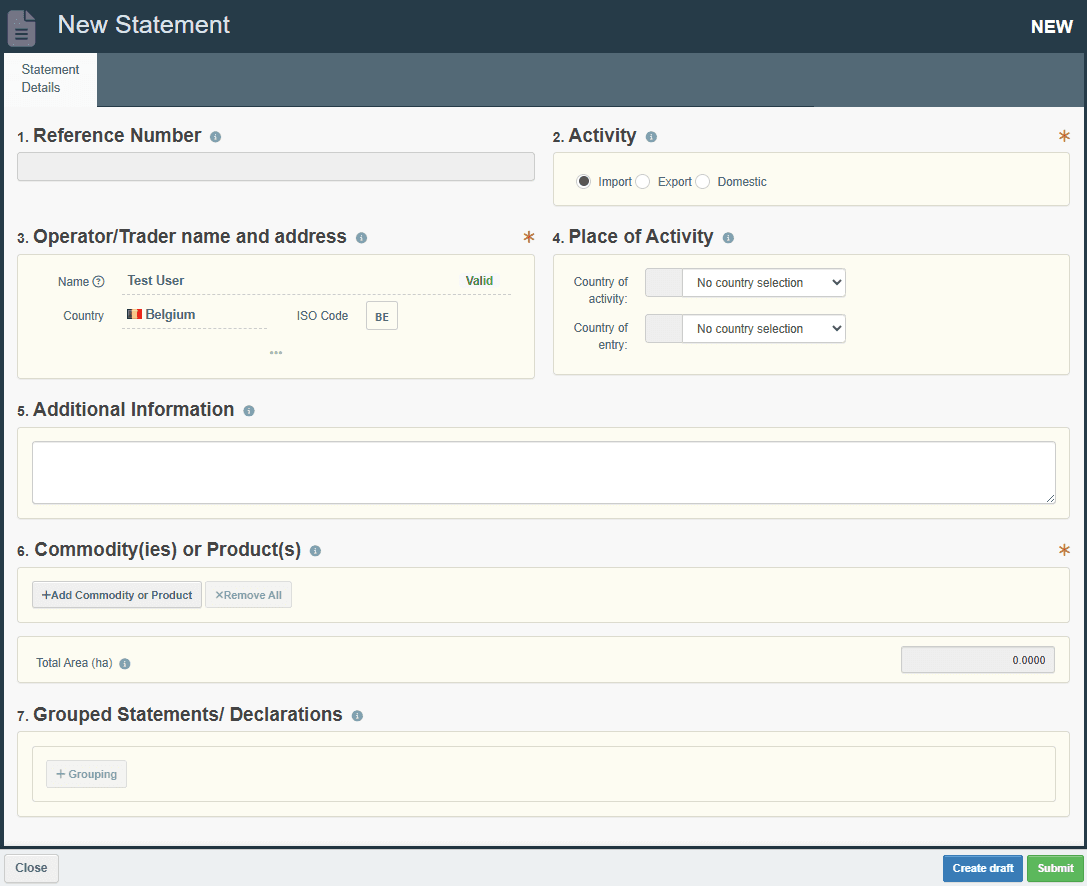
Reference Number. Left empty. The system fills it once the statement is AVAILABLE.
Activity. Import, Export or Domestic. One activity per statement, and it cannot change when you amend.
Operator/Trader name and address. Filled from your registration. A representative types in the operator’s name, address and at least one identifier.
Place of Activity. Optional: the Member State where the goods are placed on the market, and for an import or export, where they enter or leave the EU. These are separate fields and can differ.
Additional Information. Optional free text for the competent authority.
Commodity(ies) or Product(s). Add Commodity or Product starts the products part: at least one, at most 200.
Grouped Statements/Declarations. Optional. Groups your own earlier statements under one reference.
Create draft. Saves a DRAFT you can come back to. You can hold up to 50.
Activity matters most: Import for goods released for free circulation, Export for goods leaving the EU, Domestic for goods produced in the EU. One statement covers one activity, and Export applies only to goods leaving the EU without first being placed on its market.
Step 3: How do you add each product?
Add Commodity or Product opens the customs code picker. Search by keyword or drill down the tree; you can declare more digits than Annex I asks for, never fewer. If you don't know the code, find it first in the HS code lookup, which searches Annex I by product or code.
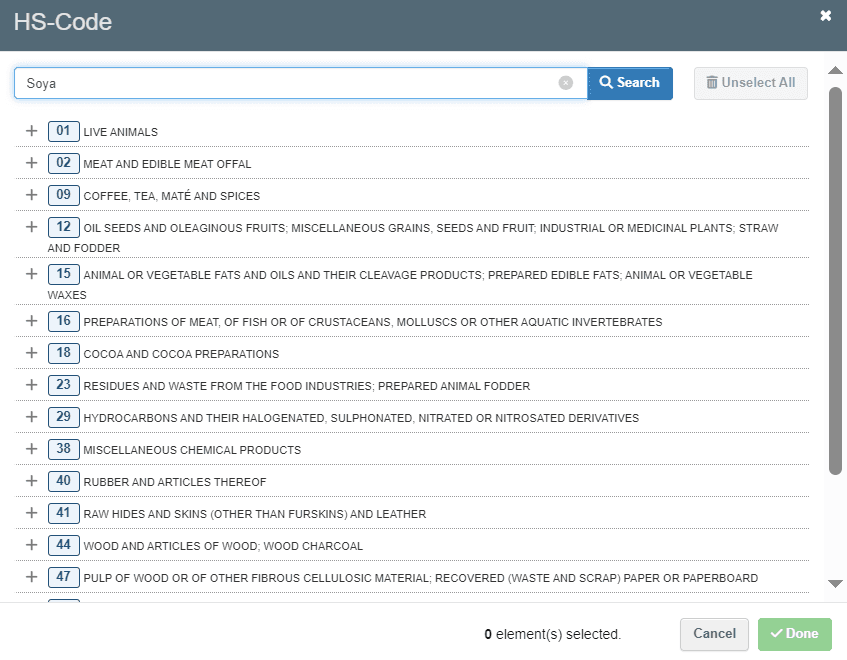
Search. Type a keyword or a code, then Search.
Code tree. Or open a chapter with + and drill down to your code, at least to the digits Annex I lists.
Done. Done adds the code to the statement.
The product then gets its own block. A statement holds up to 200 products, and each needs a description, including its trade name, and at least one quantity. The screenshot shows code 1201; Annex I now lists soya beans as 1201 90 00, so pick the full code.
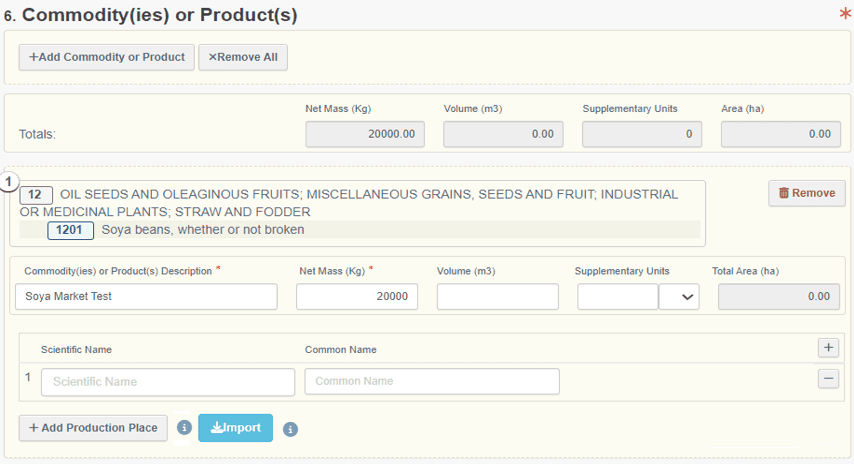
Description. Required for every product, including its trade name.
Net Mass (Kg). Required for imports and exports, excluding packaging. Some codes also need a supplementary unit.
Supplementary Units. For domestic production, net mass with a deviation estimate, a supplementary unit, or both. Some import and export codes need one too.
Scientific and common name. The full scientific name and a common name of each wood species are required.
Add Production Place. Adds a production place to enter or draw by hand.
Import. Imports a GeoJSON file for the whole product.
Net mass is the product without packaging. When one statement covers several shipments, it is the total you expect to place over that period, for which you have already done due diligence. For imports and exports, some customs codes also need a supplementary unit, such as a number of items or, for many wood codes, cubic metres; the system marks it with an asterisk. For domestic production you give at least one quantity instead: net mass with an estimate of how far it may deviate (0 to 25%), a supplementary unit, or both.
Step 4: How do you add the plots?
Every product needs at least one production place, unless it is covered only by statements you reference. A production place holds a country of production and one or more plots, each with an area and a type.
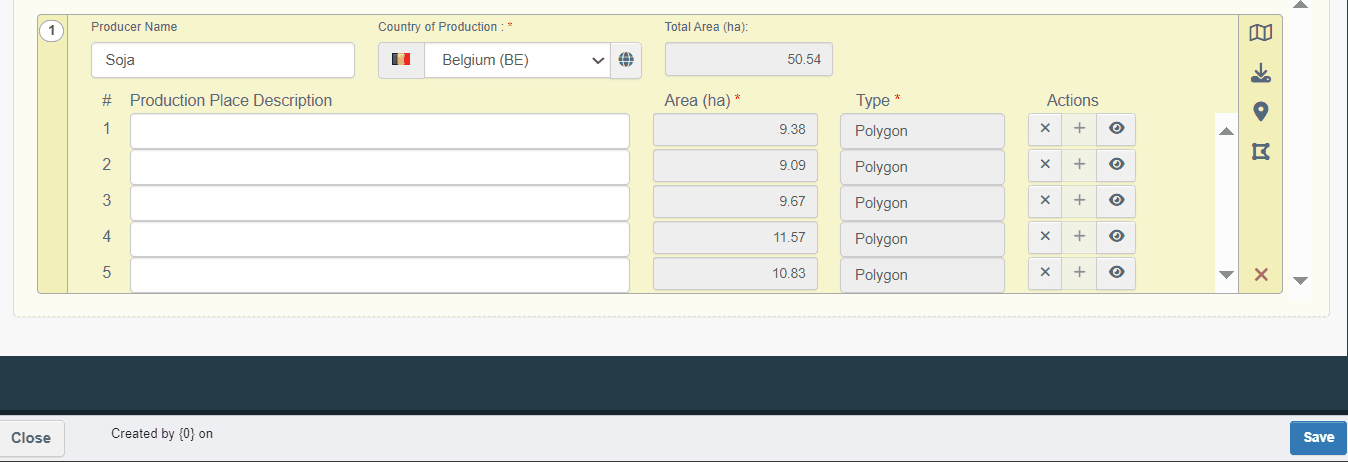
Country of Production. One per production place. A file imported here, for this producer, covers one country.
Area (ha). Calculated for polygons. For a point you enter it; left blank it becomes 4 ha.
Type. Point or Polygon, set from the geometry.
Side tools. From the top: the map tool to draw plots, Import GeoJSON for this place only, and a row to type a point’s longitude and latitude.
Save. Save often. Unsaved work is lost if you leave the page.
There are three ways to get the plots in:
- Import a GeoJSON file. Saves typing each plot. If a supplier sent KML, a shapefile or a spreadsheet, the plot file checker turns it into a GeoJSON in the format the system asks for. The system shows what it read; check it, choose the country of production, then Save and Confirm.
- Type coordinates. Each point gets a row for its longitude and latitude. A point needs an area: left blank, the system puts 4 ha, and above 4 ha it refuses a point for anything but cattle.
- Draw on the map. The map tool opens the GeoEditor, where you search for a place and draw points, rectangles or polygons.
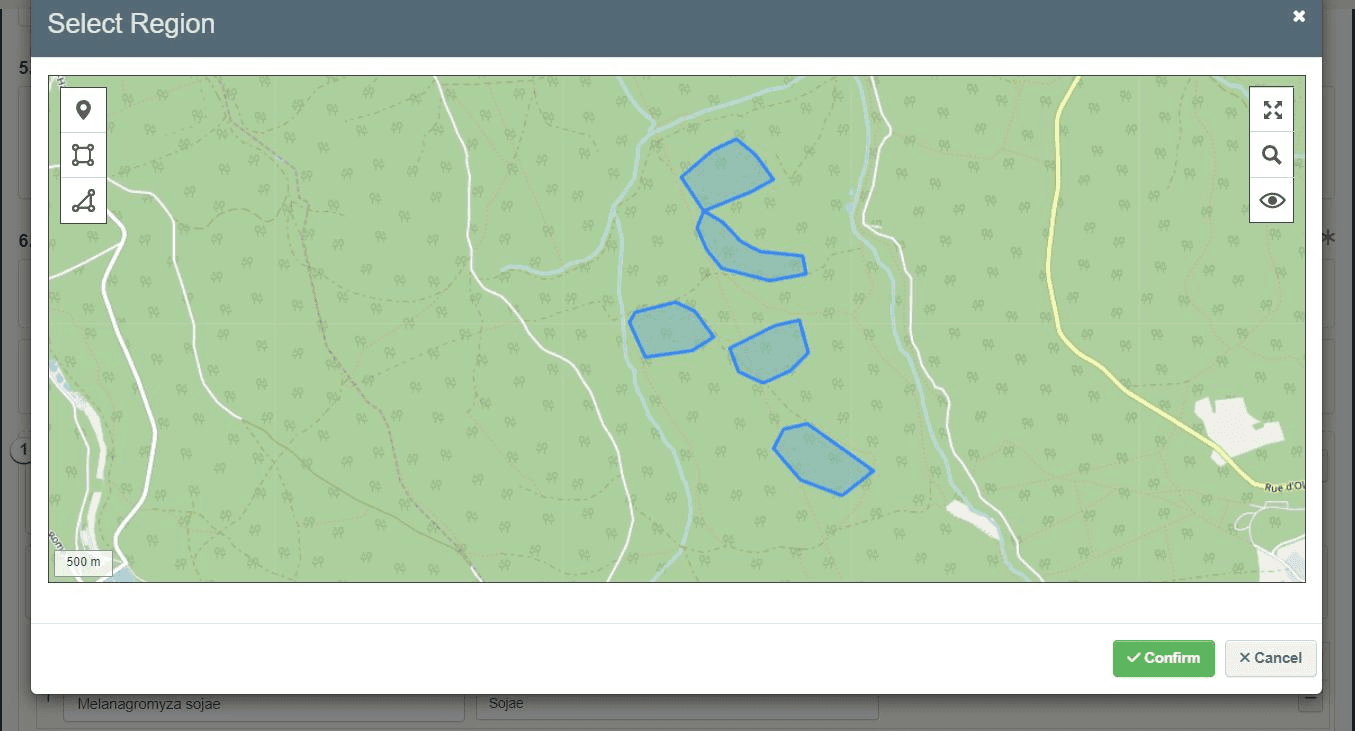
Draw Marker. Places a point.
Draw Rectangle. Draws a rectangular plot.
Draw Polygons. Draws an irregular plot, corner by corner.
Your plots. Imported or drawn plots show in blue. Check each lands where it should.
Confirm. Copies the coordinates into the statement. Don’t press it straight after a place search: it closes with nothing selected.
The rules the system and its user guide set for every plot (the size and count limits are the system's current settings):
| Rule | Limit |
|---|---|
| Coordinates | Longitude first, then latitude; longitude −180 to 180, latitude −90 to 90; 6 decimal places |
| Geometry | Closed polygons; none that cross themselves or have holes |
| Point plots | Area required, 4 ha by default, no more than 4 ha except cattle |
| File size | 25 MB of geolocation per statement |
| Producers | 1,000 per product, 10,000 per statement |
| Countries | One country per production place |
Use at least 6 decimal places: the system cuts anything longer to 6. A file imported for a producer, as shown here, covers one country; a file imported for the whole product can mix countries, with the country on each plot.
The file format itself, and fixes for the errors it raises most, are in the Commission's GeoJSON file description. What the EUDR asks of each plot is in EUDR geolocation requirements.
Step 5: How do you submit and sign?
Save as you go: a new statement is lost if you leave before the first save, and each company can hold up to 50 drafts. When the statement is complete, click Submit. The confirmation asks you to sign.
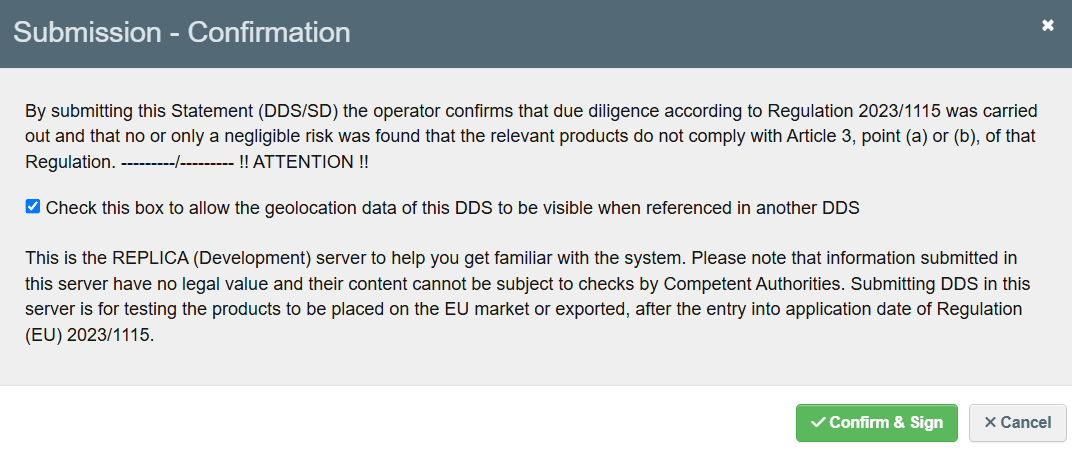
The declaration. By signing, the operator declares due diligence was done and found no or only negligible risk.
Geolocation visibility. Lets the plots show when this statement is referenced in another. Large downstream operators and traders checking it over a substantiated concern see them only if ticked.
Confirm & Sign. Submits the statement. It becomes SUBMITTED, then AVAILABLE.
The statement turns SUBMITTED while the system checks it and profiles its risk, then AVAILABLE, normally without delay. A statement that matches a risk criterion set by the authorities can be held longer for them to look at, and a competent authority can reject it.
Step 6: Where are the reference and verification numbers?
Open the statement from the dashboard once it is AVAILABLE.
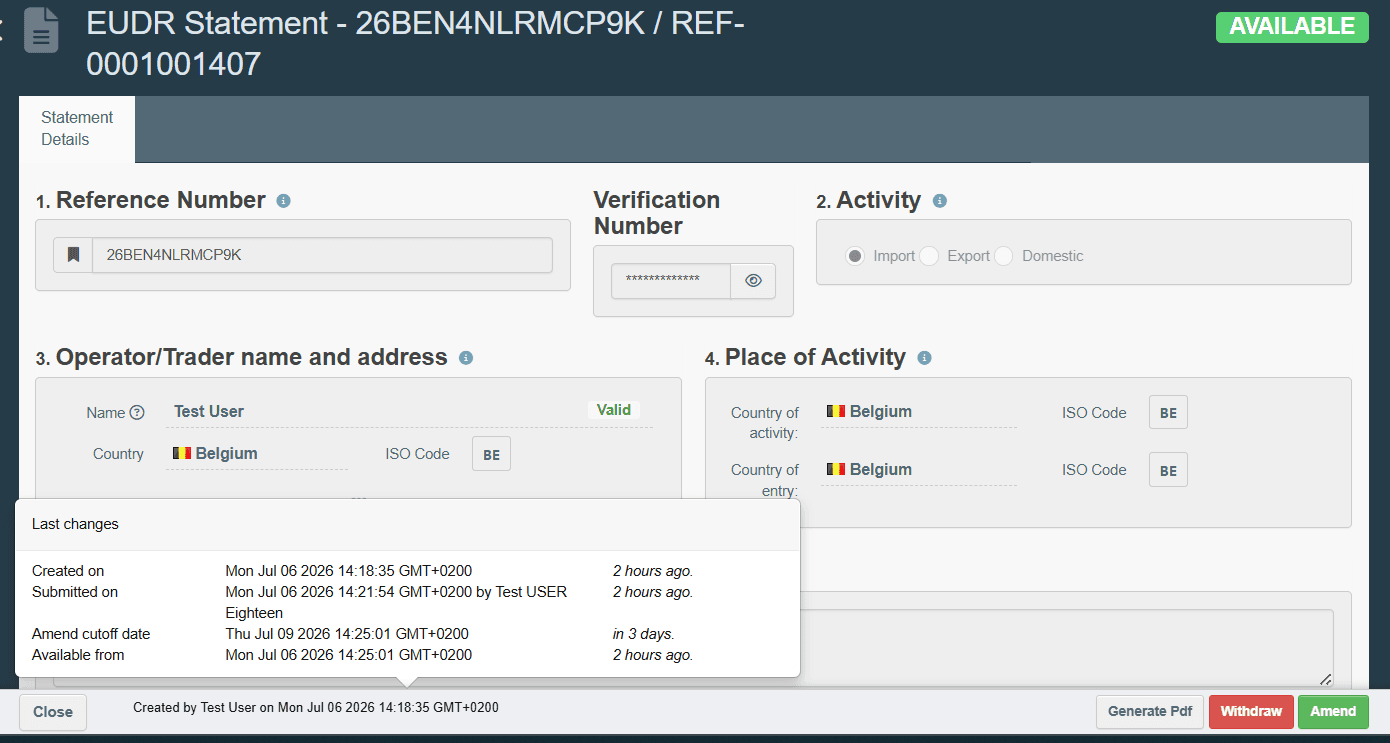
AVAILABLE. The statement passed the system’s checks and can be used.
Reference Number. For an import or export, goes on the customs declaration. It is also passed to the next operator or trader in the supply chain.
Verification Number. Hidden behind the eye. Sharing it with your buyer is optional.
Amend cutoff date. Your deadline to amend or withdraw: up to 72 hours after AVAILABLE.
Generate Pdf. Downloads the statement, without its geolocation.
Withdraw / Amend. Change or withdraw the statement within the window, unless it is already used, grouped or referenced.
The reference number goes in the customs declaration, under supporting documents, for an import or export, and it is passed to the next operator or trader in the supply chain. A downstream operator exporting the goods doesn't put it on the export declaration (Article 26(4)). Downstream operators and traders don't file a statement of their own. They keep the names and addresses of their suppliers and buyers for at least five years, and the first one after the operator also keeps the reference number. A large (non-SME) one registers in the system (
Article 5). The verification number lets someone check that a reference is genuine; passing it on is optional.
Step 7: What can you do after it is AVAILABLE?
For up to 72 hours after it turns AVAILABLE you can Amend or Withdraw it. The activity can't change in an amendment, and a statement grouped under a Group Head, or referenced in another statement, can't be amended or withdrawn at all. Article 5 of Implementing Regulation (EU) 2024/3084 locks it earlier: once the goods are on the market or exported or the number has gone to customs, and for as long as an announced check lasts. After the window closes, you can ask the competent authority for up to 8 more calendar days, for reasons beyond your control, if none of those locks applies.
What each status means, and whether you can use the statement's reference number, on a customs declaration or in another statement:
| Status | Can you use it? | What it means |
|---|---|---|
| DRAFT | No, not yet | Saved, not submitted. You can save changes, submit or delete it |
| SUBMITTED | No, not yet | Being validated and risk-profiled. You can still cancel it |
| AVAILABLE | Yes | Reference number shown. Amend or withdraw for up to 72 hours, unless locked |
| ARCHIVED | Yes | Set six months after AVAILABLE to clear the dashboard; find it with Advanced Search |
| GROUPED | No | Part of a Group Head statement and used only through it; withdrawing the head doesn't free it |
| WITHDRAWN | No | Withdrawn by you while AVAILABLE, before its reference number was used |
| CANCELLED | No | Cancelled while SUBMITTED; kept for consultation |
| REJECTED | No | Refused by a competent authority |
Two features save time. Copy As New duplicates any draft, submitted or available statement as a template for the next shipment. Generate Pdf downloads a statement without its geolocation; Export in the Production Place(s) section downloads the plots as GeoJSON. Keep both with your due diligence records: the statement for five years after you submit it, and the information behind it for five years after the goods are placed on the market or exported.
When one statement can't hold all your plots, file them across several, then create a Group Head: a new statement that lists your own AVAILABLE statements of the same activity in section 7 and gives one reference number for all of them. The head takes only their plots; you enter its products and total quantities. The user guide (16 September 2026) sets that limit at 1,000; the system's validation rules cap the statements one statement can reference at 2,000, checked 1 November 2026. Once the head is AVAILABLE, the members can't be used on their own again, even if you withdraw the head. If the system has an unplanned outage of more than 60 minutes, the contingency measures the Commission must publish by 30 December 2026 provide a contingency reference number, from a competent authority or customs, which is replaced by a system reference number once the system is back (
Article 15a of the implementing regulation; the system's
FAQ on contingency reference numbers).
Where to start
Register on the acceptance server this week and file one test statement with a real supplier's plot file. Check the plots hardest: the system rejects polygons that cross themselves or have holes, and point plots above 4 ha for anything but cattle, and swapped latitude and longitude put a plot in the wrong place. If your suppliers need somewhere to keep their plots valid between harvests, Restoration Scope for EUDR is built for their field teams.
Learn everything about the EUDR
From what the regulation asks to mapping plots, tracing lots and reviewing the evidence, in the order teams need it.
Review the evidence
- GuideEUDR compliance checklist
- GuideFiling the statement in TRACESYou’re reading this
- GuideScreening plots with Whisp
- GuideDCF commitments vs the EUDR
- Free toolPlot imagery viewer
- ProductDeforestation evidence
- ProductData quality
See it workingUp next
Frequently asked questions
Where do I submit an EUDR due diligence statement?
In the EU's Information System for the regulation, a part of TRACES at eudr.webcloud.ec.europa.eu. You sign in with an EU Login account, register your company with the Operator role, then go to Documents, EU Deforestation and Create.
From when do I have to file due diligence statements?
From 30 December 2026, or from 30 June 2027 for operators that are natural persons or micro or small companies, already established by 31 December 2024, except for wood products already covered by the EU Timber Regulation. A few products added to the list in 2026, such as coffee extracts, are covered from 30 December 2027 (Article 38 and Annex I of the regulation).
Can I practise before filing a real statement?
Yes. The acceptance server is a test copy of the live system, where submissions have no legal value. It needs its own registration; an account on one server gives no access to the other.
What is the difference between the reference number and the verification number?
The reference number identifies the statement. For an import or export it goes on the customs declaration, and it is passed to the next operator or trader in the supply chain. The verification number is a security number known only to you and the authorities; you may share it with your buyer, but you don't have to.
How long can I change a due diligence statement after submitting it?
For up to 72 hours after it becomes AVAILABLE. The statement's Last changes panel shows the exact amend cutoff date. It locks earlier once it is grouped under a Group Head, the system's validation rules block it once another statement references it, and Article 5 of Implementing Regulation (EU) 2024/3084 locks it once the goods are placed on the market or exported or the number has gone to customs, and for as long as an announced check lasts. After the window closes, you can ask the competent authority for up to 8 more calendar days, for reasons beyond your control, if none of those locks applies.
What happens if my geolocation file is too big for one statement?
One statement takes up to 25 MB of geolocation. Split the plots across several statements, then group them under one Group Head statement whose single reference number covers all of them. The head carries the members' plots, but you enter its products and total quantities yourself.
Does the system tell me whether my plots are deforestation-free?
No. It checks that the data is complete and the geometry valid, then profiles the risk for the authorities. Whether a plot was deforested after 31 December 2020 (and, for wood, whether harvesting degraded the forest after that date), and whether the goods were produced legally, is your due diligence, done and documented before you submit.
Another question? Email us or book a call.
Based on the official EU texts. See our EUDR sources, with the version we follow and the day we last checked each one.